PDF Password Protection: A Practical Guide for 2026
Nick · Published 2 September 2026
You've sent a confidential proposal as a password-protected PDF, but the follow-up questions are harder to answer than the security setup. Did the prospect open it? Which pages held their attention? Did someone forward the file, print it, or save an unprotected copy?
That gap, between sending a document and knowing what happened to it, is where many PDF workflows fail. PDF password protection controls access to the file, but it doesn't provide a complete distribution, identity, analytics, or revocation strategy. The practical answer is to match each control to the risk it addresses, then keep the reader experience usable enough that legitimate recipients can still open and review the document.
Table of Contents
- Why Password Protection Alone Rarely Solves the Problem
- How Viewer-Level PDF Password Protection Works
- Link-Based Protections and What They Add
- A Practical Distribution Workflow You Can Copy
- Where Password Protection Breaks and How to Compensate
- Comparing Tools That Pair Protection With Analytics
- Choosing the Right Setup for Your Use Case
Why Password Protection Alone Rarely Solves the Problem
A fractional CMO sends a pricing deck to ten prospects over the course of a week. Each PDF has an open password, and the password is shared in a separate email. The files are protected while they're attached to messages, but the CMO still can't tell who read the pricing page, whether a prospect returned to the deck, or whether the document travelled beyond the intended recipient.
That's the difference between file protection and document distribution control. The password gates access to the bytes. It doesn't answer what happened after an authorised person opened them.
Practical rule: Use a password to control entry, not to pretend you have visibility after entry.
The same problem appears in client work. A freelancer sends a proposal as an attachment, then follows up because there's no reliable signal beyond an email open. A photographer sends proofs and wants feedback, but the PDF gives no useful record of which images a client revisited. A founder shares an investor deck and can't distinguish genuine interest from a forwarded file that was opened once.
Password protection still has a place. It can reduce casual access when an attachment lands in the wrong inbox, and it can add a meaningful barrier around a document at rest or in transit. But it says little about identity, forwarding, page engagement, link revocation, watermarking, or reader accessibility.
A wider distribution stack might include:
- Access control: An open password, authenticated viewer, or email gate determines who can get in.
- Usage control: Printing, copying, editing, and downloading can be restricted where the viewer supports those settings.
- Traceability: Per-recipient links and watermarks make forwarding and screenshots more attributable.
- Lifecycle control: Expiry and revocation reduce access after a project, negotiation, or review window ends.
- Evidence: Page-level analytics show whether the document was read.
The right question isn't “Is this PDF password protected?” It's “Which risks remain after the recipient has the password?”
How Viewer-Level PDF Password Protection Works
PDF protection uses two distinct passwords, and configuring them for the wrong purpose creates a false sense of control.
The document-open password, also called the user password, is required before a viewer can open and read the file. The permissions password, or owner password, governs actions such as printing, editing, and copying after access has been granted.
Adobe treats these as separate controls. Its current settings can restrict printing, editing, copying, and screen-reader access, with a minimum password length of six characters. The available options are described in Adobe's current password protection guidance.
| Password type | What it blocks | Weakness |
|---|---|---|
| Document-open password | Opening and reading the PDF without the password | An authorised reader can forward the decrypted file or capture its contents |
| Permissions password | Printing, editing, copying, and selected document actions in conforming viewers | Some third-party tools may ignore permission flags |
| Both passwords | Unauthorised opening plus selected post-opening actions | It still doesn't prevent screenshots, photography, or deliberate redistribution |
A sales deck sent to a prospective client shows the boundary clearly. The password can prevent an unintended recipient from opening the attachment. It cannot identify who later receives the password, tell you which pages were reviewed, or stop a recipient from photographing the screen.
What strong encryption means now
PDF protection has changed over time. Adobe added password protection in 1996, introduced digital signatures and 40-bit RC4 with PDF 1.3 in 1999, moved to 128-bit RC4 with PDF 1.4 in 2001, added 128-bit AES in Acrobat 7.0 in 2005, and PDF 2.0 standardised 256-bit AES in 2017, as documented in this history of PDF password protection.
For new sensitive documents, AES-256 within the PDF 2.0 and ISO 32000-2 model is the modern benchmark. NIST's AES standard defines AES-256 as an approved Rijndael configuration. Legacy RC4 settings should not be treated as equivalent to current encryption.
The viewer-protection model is also documented in EveryPage's viewer protection documentation. Encryption protects the PDF before and during access. After a legitimate reader can view it, password protection cannot stop screenshots, screen photography, or a re-saved copy with restrictions removed. Pairing viewer-level encryption with durable, trackable URLs and privacy-first analytics addresses risks that the PDF password cannot cover.
Link-Based Protections and What They Add
Viewer-level protection lives inside the PDF. Link-based protection lives around the PDF, usually on a server that renders the document in a browser rather than handing over the original attachment.
In a hosted flow, a recipient opens a link and the platform displays the document. The sender can then associate activity with that link or recipient, rather than relying only on the behaviour of an email attachment. This changes the operational picture: a sender may be able to see which pages received attention, how long readers stayed, and whether they returned.
Hosted delivery also makes controls easier to apply after sending. Depending on the platform, a sender can use:
- Expiry dates: Useful when access should end after a review period, a negotiation, or a staff relationship.
- Revocation: Removes access without recalling every copy already downloaded.
- Domain restrictions: Limits access to a recognised organisation or email domain.
- Per-recipient links: Helps distinguish an intended reader from someone who received a forwarded URL.
- Dynamic watermarks: Places the viewer's email or other identifying information on the page, making casual redistribution less attractive.
Each control covers a different failure. Expiry helps with documents that shouldn't remain available indefinitely. Watermarks don't prevent a screenshot, but they make a leaked screenshot more attributable. Per-recipient links can reveal forwarding when activity appears under an unexpected identity.
A password protects the document. A controlled link manages the relationship around the document.
That doesn't make hosted viewing automatically safer. A viewer can still be compromised, an authorised reader can still capture content, and an email gate can be forwarded if identity checks are weak. IP-based analytics also deserve caution because corporate networks, virtual private networks, and shared connections can make an address a poor proxy for an individual reader.
A password can still fit inside this model. For particularly sensitive proposals or reports, requiring a password after the recipient follows a controlled link adds another barrier. The password should be treated as a second layer, not as a substitute for identity, lifecycle management, or engagement records. If you need optional expiry or self-destructing links, EveryPage's link controls describe that model, while durable links remain appropriate for documents that need ongoing access and in-place updates.
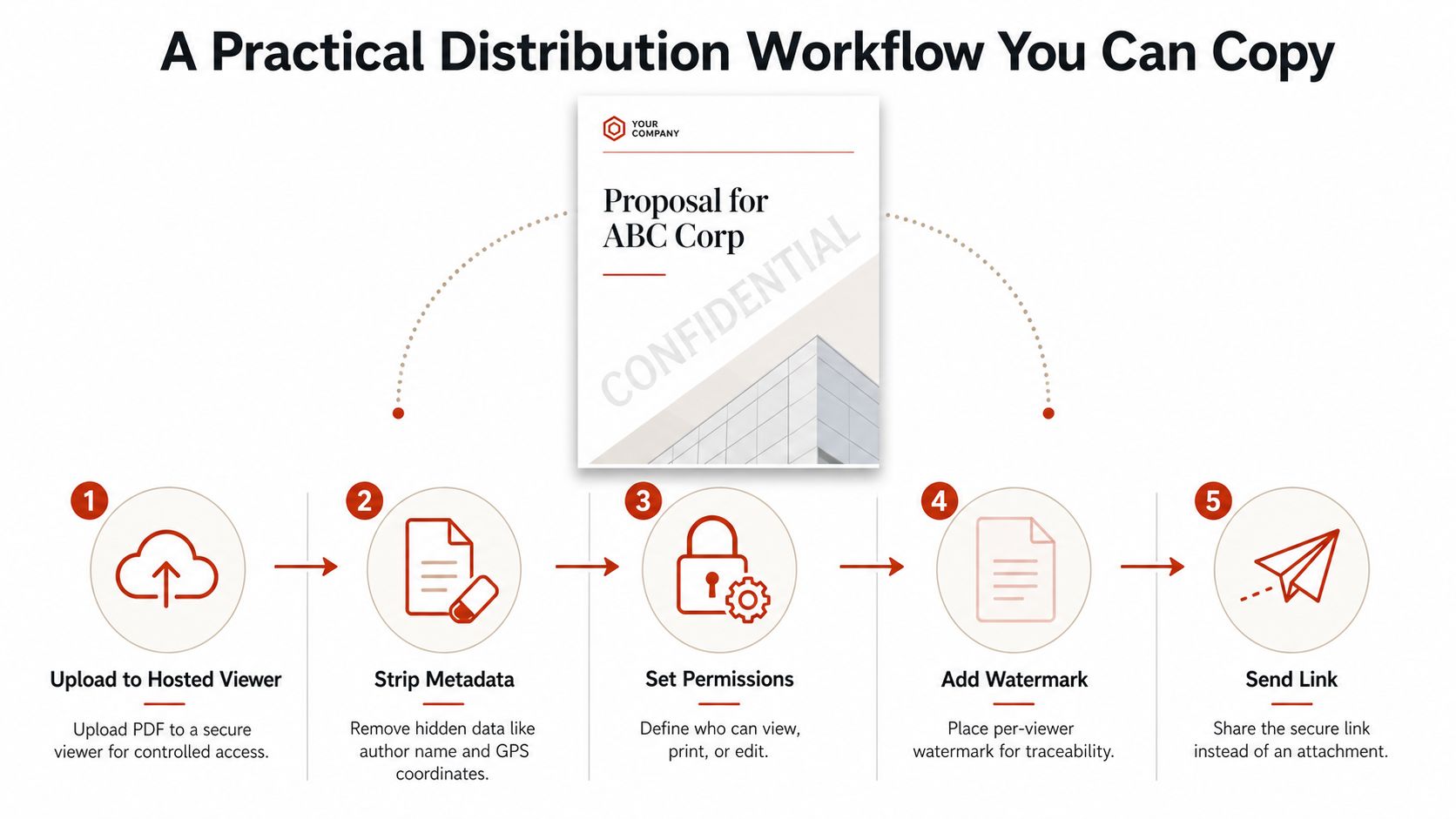
A Practical Distribution Workflow You Can Copy
Use a client proposal as the test case. The proposal contains pricing, delivery assumptions, and a project approach, so the sender wants access control without creating a support burden for the recipient.
1. Prepare the source file
Before uploading, inspect the PDF for hidden metadata, comments, revision remnants, and unnecessary attachments. Remove author details and other information that the recipient doesn't need. Keep an unprotected master in a controlled location, then create the distribution copy from that master.
Don't put the password in the same message as the file or link. Send the document through one channel and the password through another, such as a separate message or a call. This doesn't solve every credential risk, but it avoids combining both pieces of the same control in one place.
2. Choose the delivery model
Upload the proposal to a hosted viewer when you need page-level engagement, link revocation, or controlled presentation. Use a direct encrypted attachment when the recipient needs an offline file and analytics aren't central to the workflow.
For a browser-based link, check the document on both desktop and mobile before sending. A password prompt that works on a laptop may still create confusion in a mobile browser, especially if the recipient expects the link to open immediately.
3. Set the restrictions
Use an open password for genuinely confidential content. If the proposal can be read but shouldn't be printed or copied casually, enable the relevant viewer permissions. Treat those settings as friction and deterrence, not an absolute technical boundary.
Set an expiry date only when you have a clear reason. A proposal may need access beyond the initial meeting, so expiry shouldn't be the default. Durable links can be more useful when the document is an asset that will be updated in place, while a time-bound review copy may justify a shorter window.
4. Add traceability
Apply a per-recipient watermark that includes the recipient's email or another meaningful identifier. A visible watermark won't prevent a determined person from reproducing the content, but it gives the recipient a reason to think before sharing a screenshot or downloaded page.
Pair the watermark with a unique link. Track opens, time on page, read-through, and returns where the platform supports those measurements. That lets the sender follow up on the proposal section that received attention, rather than sending a generic reminder.
5. Decide what happens after a leak
If the password itself has leaked but the link is still controlled, rotate the password and notify the intended recipients. If the URL has been forwarded, reissue recipient links or revoke the old one. If an unprotected copy has already been downloaded, neither action can recall it, so the response should focus on the watermark, recipient communication, and the sensitivity of the exposed material.
EveryPage supports browser-based sharing where readers don't need an account, and its privacy-first approach provides page-level analytics without storing reader IP addresses. That can be useful when you need engagement evidence without making IP collection part of the workflow.
Where Password Protection Breaks and How to Compensate
A strong cipher can still fail behind a weak human process. People choose predictable passwords, reuse credentials, paste them into the wrong message, or leave them in shared notes. One password study reported 98% of users reused passwords verbatim, while research into attack passwords identified predictable terms such as “password”, “admin”, and “welcome”. Those findings are documented in this password research.
Use a long, unique passphrase generated or stored by a password manager. Never reuse a client password across proposals, and avoid the company name, project name, or a familiar date. Strong passwords reduce brute-force exposure, but they do not stop phishing, keylogging, or a recipient from sharing the password.
The file can be changed after encryption
Password protection does not guarantee integrity. Independent security research found that encrypted PDFs could be manipulated so that a legitimate user opening the file triggered data exfiltration. A 2019 study tested 27 desktop PDF readers and found every tested reader vulnerable to at least one manipulation variant. Ruhr University Bochum's security research report summarises the findings.
For high-risk files, combine encryption with tamper detection, a controlled viewer, rights-management controls, or a trusted delivery pipeline. If a PDF must remain unchanged, verify its integrity before distribution and give recipients a reliable way to identify an altered version.
Screenshots and permissive viewers remain outside the boundary
Encryption cannot stop someone photographing a screen. Permission flags may also be ignored by non-conforming PDF tools, while some editors can re-save files and strip restrictions. A visible, per-viewer watermark therefore adds practical accountability beyond copy and print blocks.
IP logging can create false precision. Shared corporate networks, VPNs, and mobile connections may represent several people or a changing connection. Email gating has a related weakness: one recipient can forward the access message.
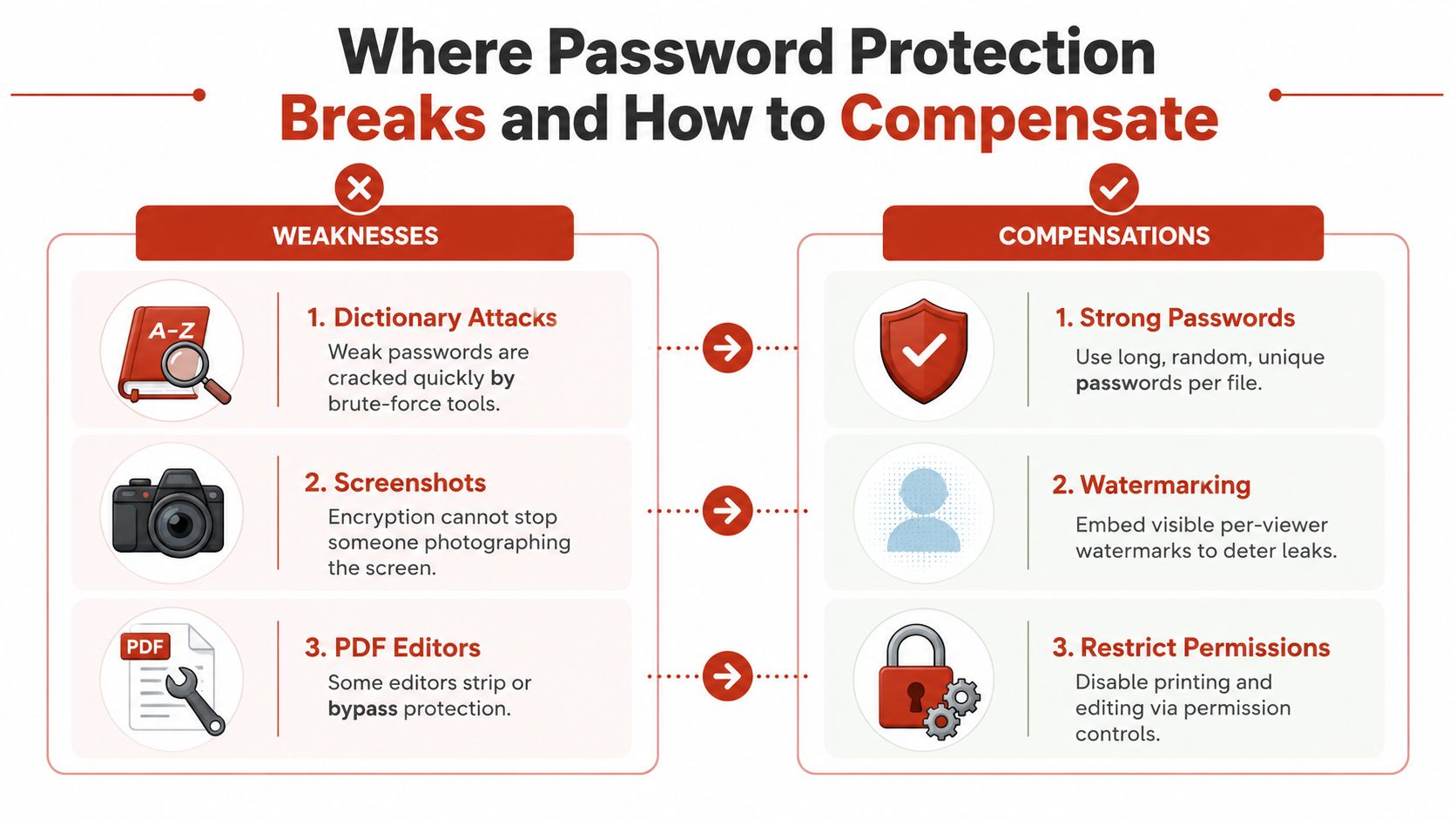
A practical distribution stack combines:
- Unique passphrases: Reduce predictable and reused credential exposure.
- Separate communication channels: Keep the password away from the file or link.
- Recipient watermarks: Connect visible copies to the intended viewer.
- Integrity checks: Detect unexpected modification before trusting a sensitive file.
- Short, justified expiry: Reduce stale access without making a durable document unusable.
- A tested reader experience: Confirm that legitimate users can open, search, and use the PDF on their regular devices.
Use an open password for confidential content. For sales decks, proposals, and client files, link-based controls can add revocation and auditability, while privacy-first analytics show engagement without treating IP collection as the only source of evidence. EveryPage supports browser-based sharing, so recipients can read a protected document without an account. It provides page-level analytics without storing reader IP addresses.
Security that prevents a client from reading the proposal is a failed workflow. The control should reduce risk without creating enough friction that recipients ask for an unprotected attachment.
Comparing Tools That Pair Protection With Analytics
The right tool depends on the job. DocSend is a sensible fit for enterprise sales teams that need a mature document-sharing environment, compliance processes, and broader sales-system integration. PandaDoc is more appropriate when protected documents sit inside an e-signature or contract workflow.
EveryPage is our product, and it fits freelancers, founders, consultants, and smaller teams that want password-protected browser delivery, tracked links, expiry controls, and watermarking without per-user fees. It also provides page-level analytics, including views, time on page, read-through funnel, and re-read rate, while readers can access documents without creating an account. Its privacy-first design doesn't store reader IP addresses, which is a meaningful contrast with platforms that use IP tracking as part of their analytics model.
EveryPage has honest limitations. It has a smaller integration library than a large enterprise sales platform, it doesn't provide native e-signatures, and its analytics surface is younger than DocSend's. If your workflow depends on enterprise compliance procurement or signing contracts in the same product, a competitor may fit better.
| Tool | Pricing model | Protection | Analytics | Best fit |
|---|---|---|---|---|
| EveryPage | Flat per-account pricing, Free, Basic at $9 per month, and Pro at $29 per month | Password protection, right-click, print and copy blocking, watermarking, optional expiry | Page views, time on page, read-through funnel, re-read rate | Freelancers and small teams needing privacy-first tracked sharing |
| DocSend | Per-user pricing, Personal at $10 per user per month, Standard at $45 per user per month, Advanced at $150 per month, and Advanced Data Rooms at $180 per month | Controlled document-sharing and data-room workflows | Detailed engagement and sales-oriented reporting | Enterprise sales and compliance teams |
| PandaDoc | Per-seat pricing, Starter at $19 per seat per month and Business at $49 per seat per month, with additional document charges on some plans | Protected documents within contract and signing workflows | Document and workflow reporting | E-signatures, contracts, and payment-related processes |
The DocSend prices come from its published pricing page. PandaDoc's seat and document charges are listed in its published pricing. The comparison matters because the cost model changes as teams grow. DocSend and PandaDoc can scale with seats, and PandaDoc can also add document-volume charges, while EveryPage's stated positioning is flat per account.
For a closer look at the tracking use case, see EveryPage's PDF tracking capabilities. Don't choose based on a feature checklist alone. Choose the product that matches your required identity model, reader experience, integration needs, signing process, and budget structure.
Choosing the Right Setup for Your Use Case
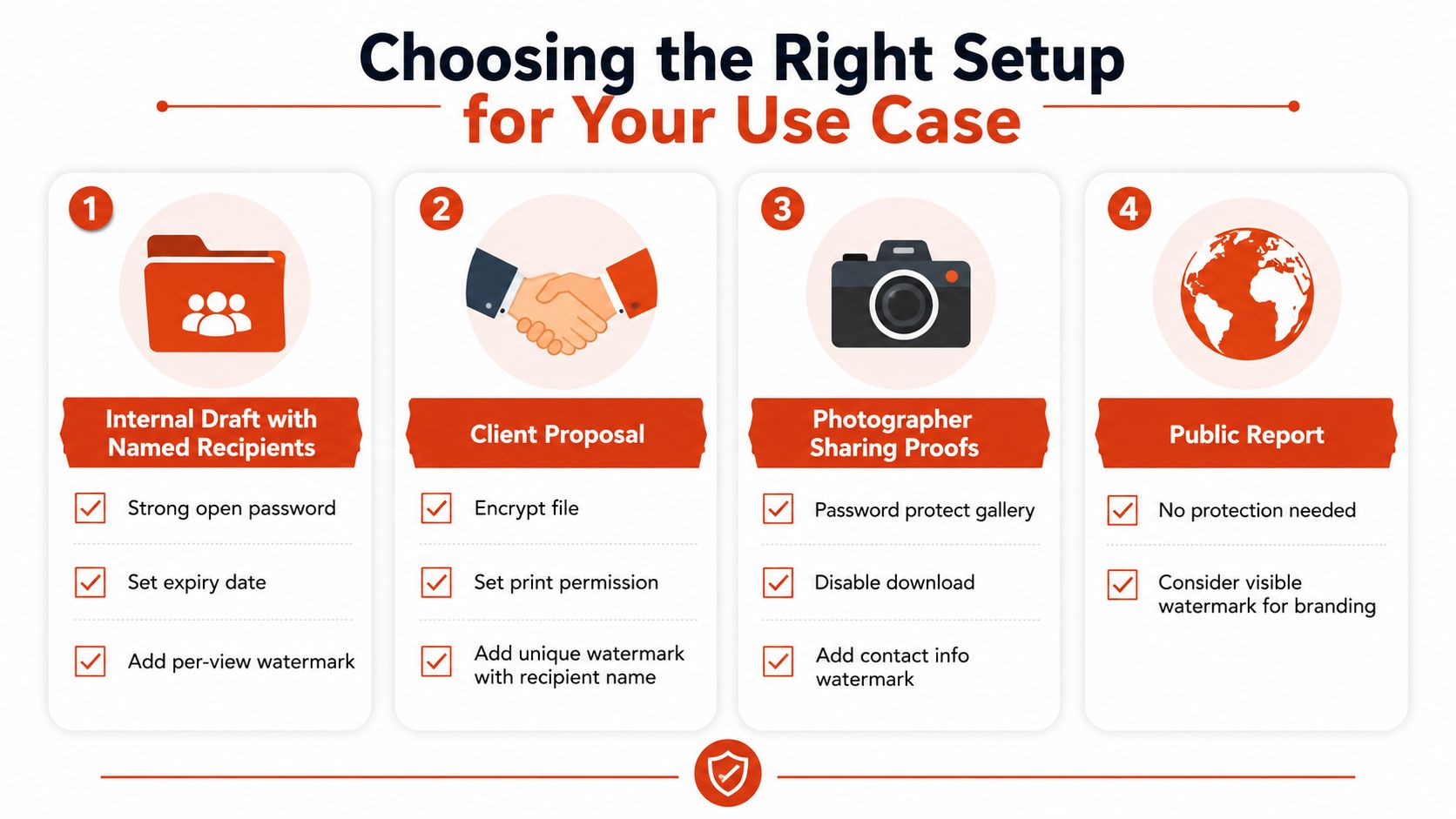
Start with the document, then identify the reader and the consequence of exposure.
An internal draft shared with named recipients may need an open password, an expiry date, and a per-view watermark. A client proposal usually benefits more from a controlled link, recipient identity, revocation, and page-level analytics than from a complicated password prompt alone. A photographer sharing proofs may prioritise disabled downloads, visible contact details, and comments or photo proofing so feedback stays with the work.
Regulated material, such as financial statements or contracts under a confidentiality agreement, warrants layered controls. Use modern encryption, a viewer that doesn't expose the raw file unnecessarily, recipient-linked watermarking, and audit records. A public report may need no access password at all, although a visible brand watermark can still help identify the source.
Use this checklist before you publish:
- Reader identity: Do you need to know a person, an organisation, or nobody in particular?
- Offline access: Must the recipient download the file, or is browser viewing sufficient?
- Revocation: Can you withdraw access after sending?
- Durability: Should the URL expire, or should it remain a permanent, updateable document address?
- Evidence: Do you need page-level readership, comments, or proof of delivery?
- Accessibility: Can legitimate readers search, print, and use assistive technology where required?
The best setup is the smallest combination of controls that answers those questions without blocking normal work. Treat the PDF as a durable, trackable asset, not a one-off attachment.
If you need to share proposals, pitch decks, proofs, or reports with PDF password protection, optional expiry, watermarking, and page-level analytics without storing reader IP addresses, visit EveryPage and create a tracked browser link your readers can open without an account. Upload a PDF, choose the controls that match the document, and keep the URL available for future updates when permanence matters.
See who reads your next PDF.
Try EveryPage free