How to Email a Large PDF File Without It Bouncing
Nick · Published 19 August 2026
You've just finished a proposal, a product brochure, or a pitch deck, and the email dies on send because the PDF is too heavy. That's the normal outcome, not a rare glitch. Email systems are built with tight attachment caps, and once you add message-body overhead, signatures, and encoding, a file that looks “under the limit” can still bounce.
Treat this as an attachment problem only when you have to. For anything over a few megabytes, the reliable move is to stop trying to push the file through the inbox and send a durable link instead. That keeps the document readable, controllable, and measurable, which is a much better deal than gambling on whether a mail server will accept it.
Table of Contents
- Why Large PDFs Fail to Send by Email
- Compress and Split When the File Must Stay an Attachment
- Switch to a Shared Link and Treat It as a Trackable Asset
- Choosing the Right Tool for the Job
- Keeping Readership Evidence Without Storing Reader IPs
- A Quick Decision Framework Before You Hit Send
Why Large PDFs Fail to Send by Email
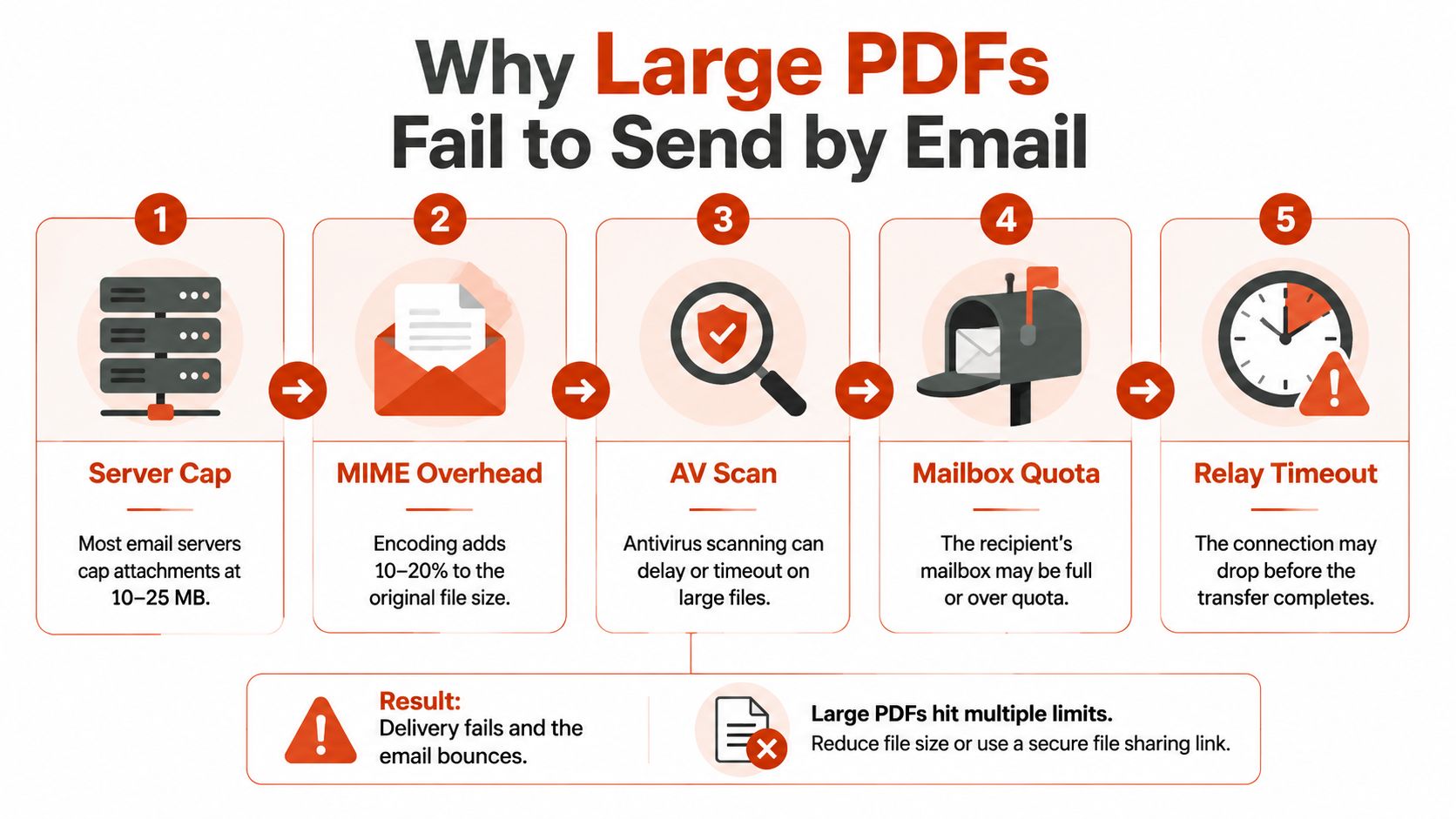
The failure usually shows up at the worst moment. You hit send, the message stalls, and then a bounce appears because the PDF crossed a limit somewhere in the delivery path. Mail systems do not treat “large” kindly. Outlook.com and Gmail accounts often sit around a 20 MB email size limit, Exchange business accounts default to 10 MB, and Google and Yahoo commonly allow 25 MB. The catch is that the total message size includes the attachment and the email body, so a file that looks safe in your folder can still fail in transit. Microsoft's attachment guidance makes the practical point clearly, large PDFs are a delivery problem first, a file-format problem second. Microsoft's attachment-size guidance
The hidden overhead you don't see
A PDF that appears to fit can still cross the line once email encoding kicks in. Attachment-limit research points to Base64 inflation and message-body overhead as the reason a 25 MB raw file can still miss the send threshold. That is why sending guides tell you to stay well below the nominal limit if you want reliable delivery. Attachment size limits and encoding overhead
More problems sit behind that first limit. Server-side antivirus scanning can slow a message until it times out, recipient mailbox quotas can reject it even after the sender accepted it, and SMTP relay timeouts can cut the connection before the payload finishes moving. The sender sees one bounce notice. Several systems may have already killed the message.
Practical rule: if a PDF is anywhere near the limit, assume it is already too big for email.
The clean answer is simple. A PDF under the nominal cap is not automatically deliverable, and a PDF over the cap is already a poor attachment candidate. Treat the file as an attachment only when you have to. For everything else, move to a shared link and treat the document as a durable, trackable asset. For a straightforward walkthrough of that approach, use EveryPage's sharing by email guide.
Compress and Split When the File Must Stay an Attachment
Sometimes the recipient expects a real attachment. A lawyer wants a file in the inbox, an internal archive process needs a local copy, or a client insists on saving the document directly. In those cases, compression and splitting are the right first moves, because they buy you enough room to get the file through without changing the workflow.
Strip waste before you touch quality
Start with the obvious bloat. If the PDF contains heavy images that only need screen viewing, downsample them. If the file carries transparency layers that add complexity but no real value, flatten them. If it includes fonts that weren't subsetted during export, rebuild it so only the glyphs used ship with the document. Remove metadata if it's bloating the payload. These are the boring fixes, but they're the ones that matter.
A sensible target is to keep the final attachment comfortably under 8 MB if you want it to survive most consumer limits after encoding overhead is added. That gives you a buffer instead of a near miss. If you try to live at the edge of a 20 MB or 25 MB ceiling, you're just handing the mail server a chance to reject you.
Split the file when compression is not enough
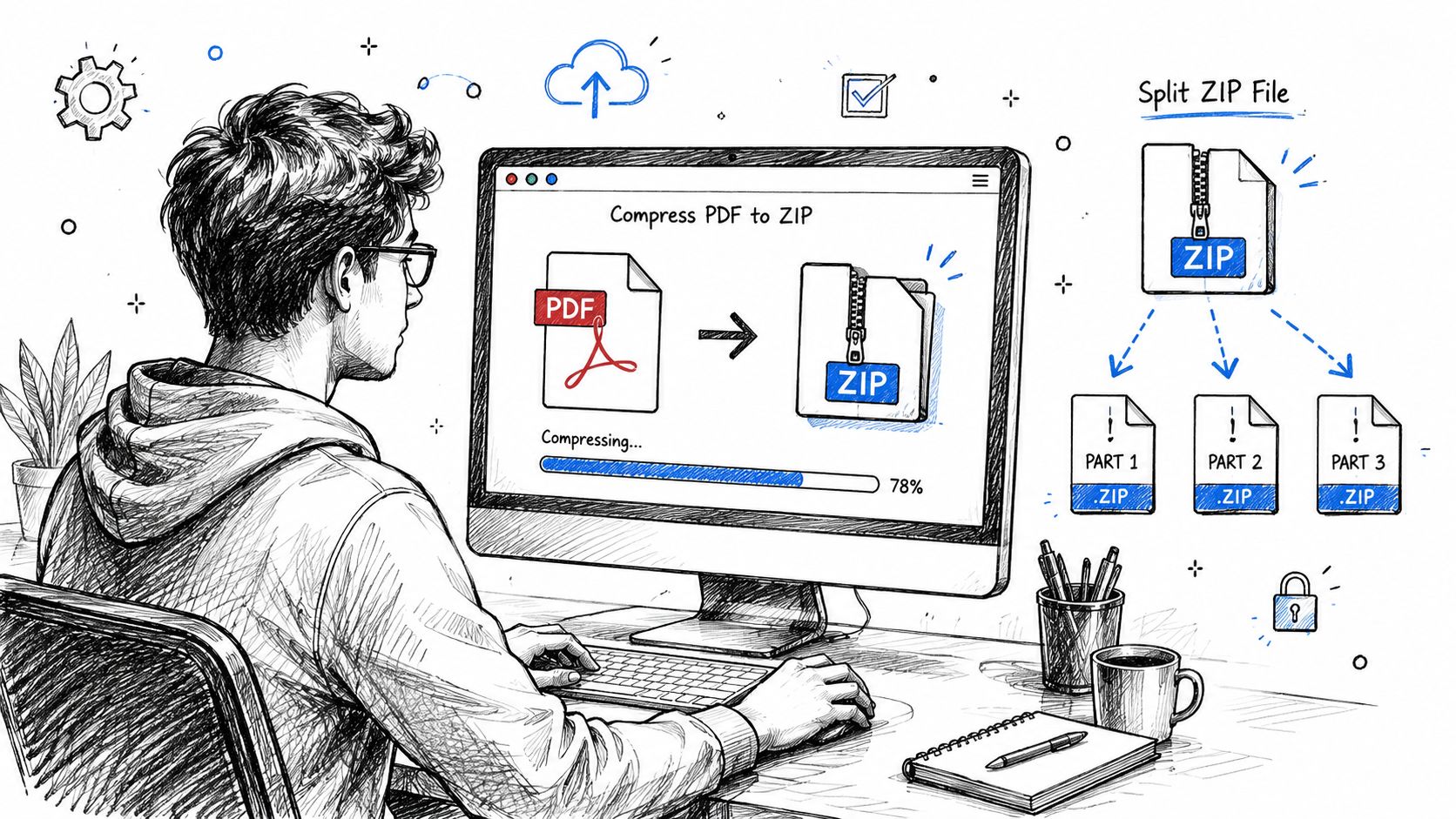
If the document still won't fit, split it by page range. Acrobat, Preview, and pdftk all handle that kind of breakup cleanly enough for one-off sending. Just remember the trade-off, because five numbered parts are harder to read, harder to forward, and much easier to ignore than one coherent document.
- Use compression first: tackle images, fonts, transparency, and metadata before you think about splitting.
- Split only when necessary: page ranges are a last resort for oversized reports or catalogues.
- Keep the recipient in mind: if they need to review the whole thing quickly, multiple attachments are clumsy.
A compressed attachment is still a copy you can't update after it leaves your outbox.
That's the hard limit of the attachment model. Once it's sent, you can't revoke it in any meaningful way, replace a page, or measure whether it was read. Compression helps you fit the old model, but it doesn't fix the weaknesses of the old model.
Switch to a Shared Link and Treat It as a Trackable Asset
The cleaner move is to stop treating the PDF as a payload and start treating it as a shared document. Upload it, generate a link, and send that link in the email. That gets you out of the attachment limit mess entirely, because the message carries a pointer, not the file itself. It also works better for people opening mail on mobile or sitting behind strict corporate filters, where oversized attachments are exactly the sort of thing that gets blocked.
A link changes the lifecycle of the document. You can update the file in place, protect it with a password, control access, or revoke it later. With EveryPage, a sender can upload a PDF and get a tracked link immediately, with no account needed, and readers don't need an account either. It also supports page-by-page analytics, custom domains, watermarking, lead capture, and dynamic links with file replacement, so the link behaves like a durable document channel rather than a dead-end download. EveryPage's PDF analytics sharing flow
What a link gives you that an attachment never will
The operational gain is obvious once you've used both methods. A raw attachment is static the moment it leaves your outbox. A shared link can keep living, even if the underlying PDF changes, and you can see whether it was opened at all.
That matters for a founder sending a pitch deck, a freelancer sending a proposal, or a photographer sending proofs. Instead of wondering whether the client opened the file, you get a reading trail you can act on. Instead of sending a replacement attachment and hoping the recipient uses the newest one, you update the source and keep the same URL.
Use links for control, attachments for convenience. If the file matters after delivery, the link is the better asset.
The attachment still has a place when someone needs to edit the PDF locally or archive it inside their own system. But for anything client-facing, sales-facing, or policy-facing, the link is the more reliable default. It removes size anxiety, lowers the chance of bounce, and gives you a record of engagement instead of silence.
Choosing the Right Tool for the Job
The right tool depends on what the recipient needs to do with the file. Treating every sharing problem as if it had one answer often leads to a result that feels either too basic or too heavy.
Match the workflow to the document
DocSend fits enterprise sales decks where forwarding control and detailed recipient analytics matter, especially when a compliance team wants tighter oversight. The trade-off is that its pricing model can become awkward fast if you're scaling lots of sending. PandaDoc makes more sense when the document has to move through e-signature and contract workflows, because that's what it's built around.
Dropbox, OneDrive, and Google Drive all work for straightforward file handoff, especially inside teams that already live in those ecosystems. They're fine when the goal is access, not insight. They're weaker when you want to know who read what, because basic file-viewing tools usually don't give you the kind of page-level behaviour that sales, fundraising, or proofing workflows need.
EveryPage is our product, and it fits PDF-first sharing where the document needs to behave like a durable asset with reader-level analytics, custom branding, and no reader account required. It has a limitation too, since it's focused on PDF sharing rather than full contract execution or signature workflows, so it's not the right substitute for a dedicated e-signature platform.
Use the tool that matches the job
- Sales decks and investor updates: choose a platform that shows page-level readership, not just a file opened somewhere in the cloud.
- Contracts and proposals needing signatures: use PandaDoc if the signature flow is the main event.
- Internal handoffs and quick transfers: Dropbox, OneDrive, or Google Drive are usually enough.
- Tracked client-facing PDFs: use a link-based sharing tool that treats the file as a living document, not an attachment.
On pricing, flat account-based plans are easier to budget than per-user models, which is one reason teams compare tools so carefully. EveryPage's Free, Basic at $9/month, and Pro at $29/month tiers are flat per account, with no per-user fees, which is useful if you're sharing across a small team and don't want billing to grow with every seat. That's a real difference when you're weighing it against per-user or per-recipient models.
Keeping Readership Evidence Without Storing Reader IPs
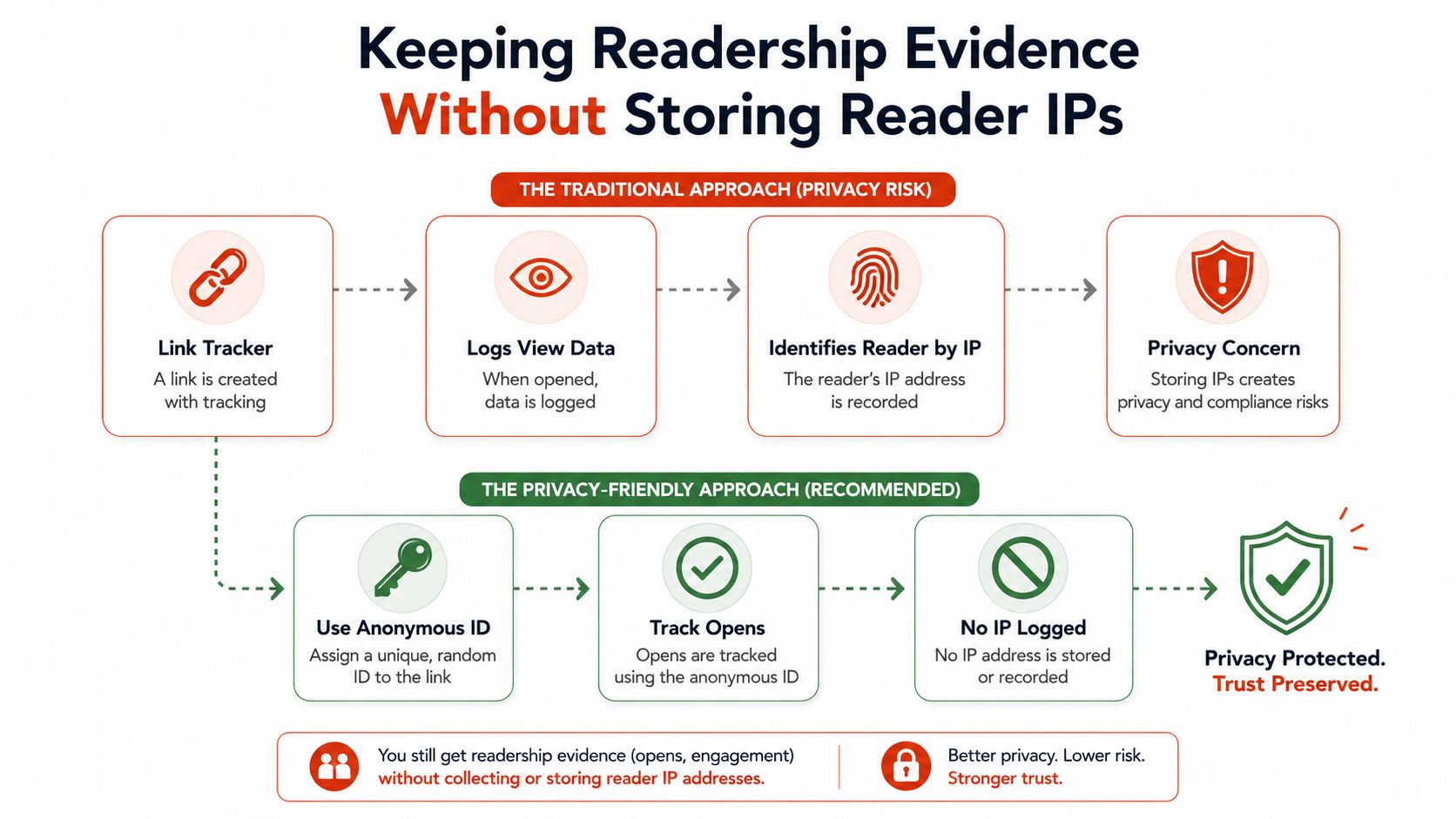
Analytics are only useful if you can trust the way they're collected. A lot of link trackers log the reader's IP address alongside the view, which gives you a strong record but creates a privacy headache for European distribution. If you're sending policies, financials, or client work into GDPR-sensitive environments, that matters.
Track the reader, not the network data
The cleaner model is to identify the reader with a unique token attached to the link or recipient, then track open events, time on page, page sequence, and return visits against that token. The operational value is the same. You still know who read which pages and which sections got revisited. The difference is that no IP address needs to land in your database.
That's the part that makes privacy-first analytics worth paying attention to. You can answer questions about engagement without storing network identifiers that complicate data handling later. For teams that want a practical route into this setup, EveryPage's privacy guide for sharing without storing IPs lays out the approach clearly.
Set up the share properly
Use per-recipient links when the document is sensitive or when you need a reading trail for each contact. Add password protection if the file shouldn't be opened by anyone who finds the link. Use expiry only when you want access to end, not as a default gimmick. Then export the logs into your CRM or ops stack so the signal gets used instead of sitting in a dashboard.
You want traceability without collecting more personal data than you need.
That's the whole point. If the PDF is a policy pack, a proposal, or annotated client proofs, you need evidence of readership. You don't need to keep a stack of IP addresses to get it.
A Quick Decision Framework Before You Hit Send
Use a simple cutoff and stop overthinking it.
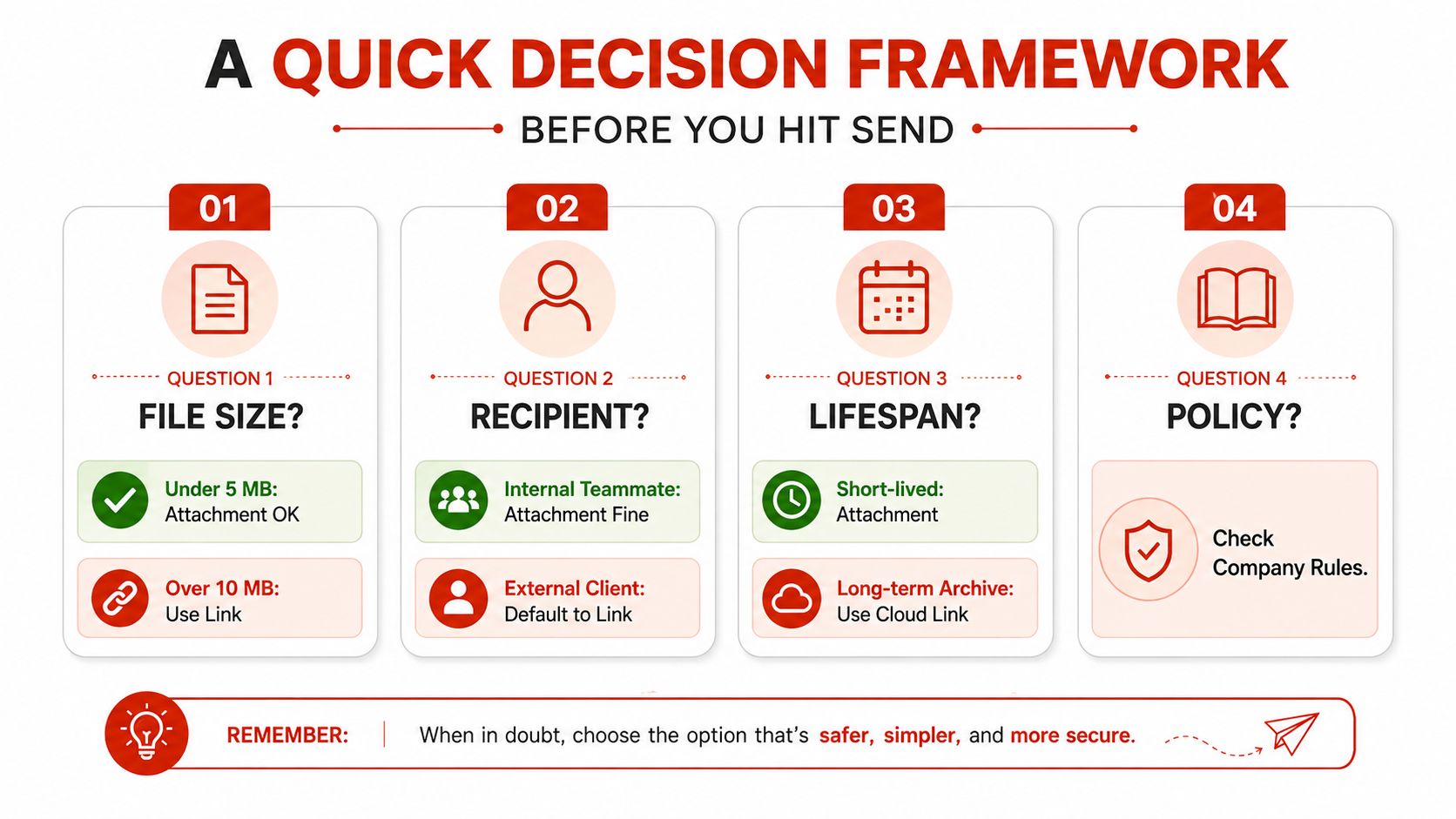
If the file is under 5 MB and the email has a short shelf life, an attachment is fine. If it is over 10 MB, send a link by default. That keeps you away from the usual provider caps and the extra file overhead that turns a borderline PDF into a bounce. Microsoft's attachment guidance points in the same direction, stay well below the limit instead of testing it. Microsoft's size guidance
Ask four questions before you send
- File size: if the PDF is already near the cap, do not gamble on an attachment.
- Recipient: internal teammates may accept a raw file, but clients usually expect a cleaner link.
- Lifespan: if the document should stay available and stay current, send a link, not a copy.
- Policy: if the content is confidential, keep it behind password protection and controlled access.
The rule is blunt because the trade-off is blunt. Attachments fit files the recipient will edit or archive locally. Links fit files you want to control, update, and measure. If you need reading evidence, a link is the only sensible choice.
Use a link whenever the PDF matters after send. That makes it a durable, trackable asset instead of a one-off attachment that disappears into someone's downloads folder. Keep the attachment only as a fallback for the rare recipient who will not open a link. You keep deliverability clean, preserve the current version, and avoid turning a routine send into a support issue.
See who reads your next PDF.
Try EveryPage free