How to Link Pdf Page: A Complete Guide 2026
Nick · Published 10 August 2026
You've just sent a 40-page report, and the client replies with, “Can you point me to the budget on page 27?” The usual answer is a sentence in an email, maybe with a screenshot, maybe with a little luck. That works once, but it doesn't solve the main difficulty, which is getting someone to the right page quickly and knowing whether they have reviewed it.
A link PDF page workflow sounds simple until you have to do it for real. The basic URL trick is useful for a quick hand-off, while a proper document sharing platform gives you control, analytics, and a cleaner experience for the reader. The difference matters whether you're a founder sending a pitch deck, a consultant delivering a report, or a photographer asking a client to choose proofs.
Table of Contents
- Why Sending Someone to a Specific PDF Page Is Harder Than It Looks
- The Classic Method Using URL Parameters
- Where Simple Page Links Fall Short
- A Modern Approach with Document Sharing Platforms
- Comparing Tools for Page-Specific PDF Sharing
- Choosing Your Linking Strategy
Why Sending Someone to a Specific PDF Page Is Harder Than It Looks
You know the moment. You send the deck, the report, or the proposal, and the other person comes back asking for the exact page you already mentioned. In a short file, that is mildly irritating. In a long one, it turns into friction, delay, and a second round of explanation.
A PDF is often treated like one object, but the reader experiences it page by page. That is why a simple file link is rarely enough for real document sharing. Adobe's guidance shows that a PDF link can open at a specific page using a page fragment, and it can also jump to a named destination inside the document. For teams that need more control, EveryPage's viewer PDF link guidance covers the same idea from a document-sharing angle. The technical piece exists, but the practical problem is making it work reliably in everyday sending.
Practical rule: if the document matters, do not assume “please see page 27” is enough. Use a link that puts the reader in the right place with as little guesswork as possible.
For a founder, that might mean sending an investor deck where the financials need to be easy to find. For a consultant, it could be a board pack or audit report with one section the client always opens first. In both cases, the point is not just convenience. It is reducing the chance that the reader gives up before reaching the useful page.
The same issue shows up when teams want proof that a file was read. A static attachment tells you almost nothing. A linked destination can make the document easier to move through, easier to share with intent, and easier to understand without asking the recipient to hunt through the file.
The Classic Method Using URL Parameters
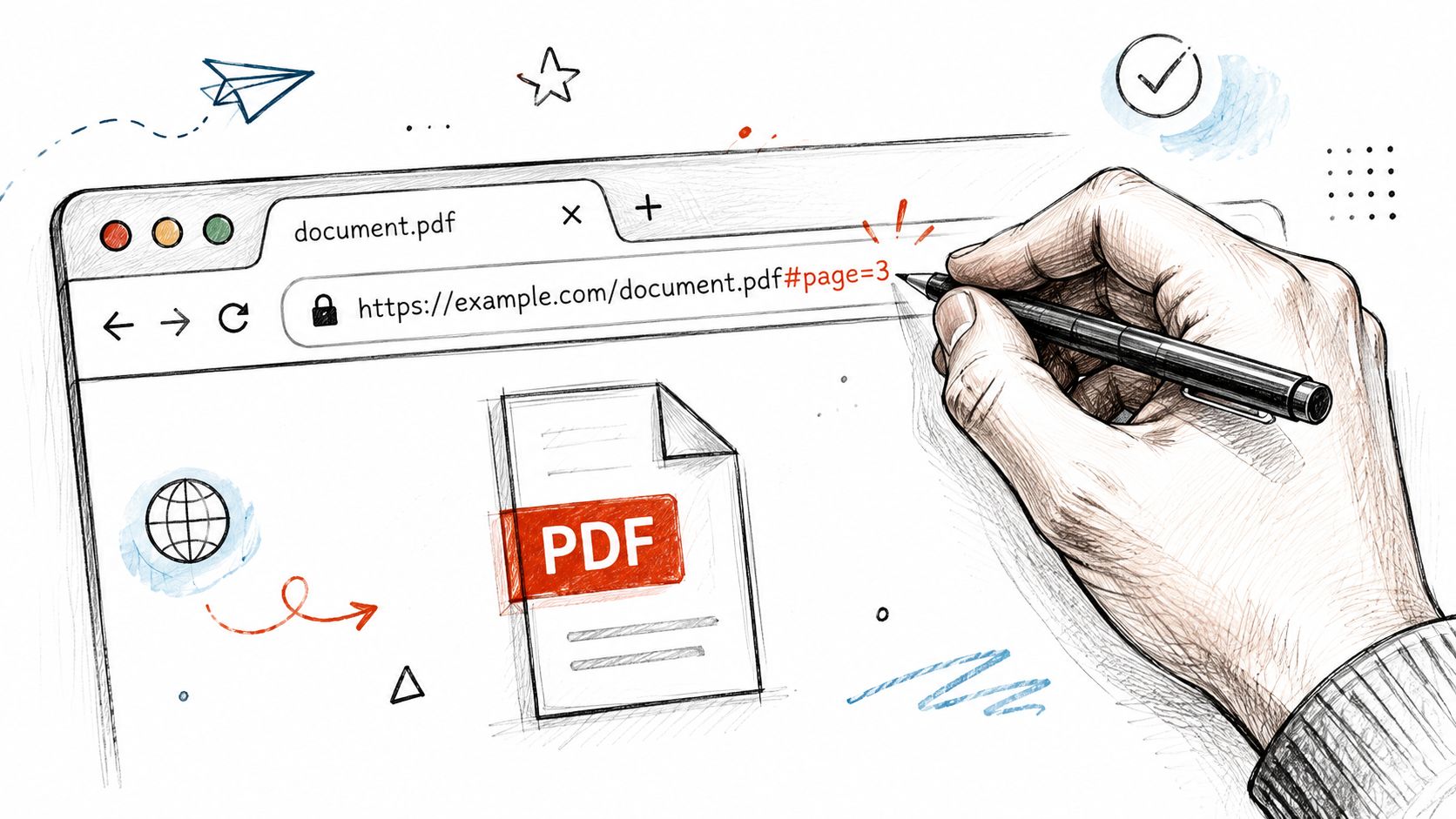
A founder sending a pitch deck or a consultant sharing a report often just needs the reader to land on one page. The simplest way to link PDF page is to add a page fragment to the end of the file URL. Adobe's page fragment documentation shows the format as #page=[page number], which opens the PDF at that page when the file is hosted online and the viewer supports it. A named destination can also be linked with #[destination name]. Adobe's page fragment documentation
If your PDF lives at https://example.com/report.pdf, then a link to page 12 becomes:
https://example.com/report.pdf#page=12
The same pattern helps when you need someone to land on a budget table, a signature block, or a specific chart without hunting through the file. If your team already uses page-specific sharing, EveryPage's page range link security guide explains how that access model works in a controlled setup.
What has to be true for it to work
The PDF has to be hosted online, not just attached to an email. The recipient also needs to open it in a browser or viewer that respects the fragment. In practice, that makes the link useful in some browser-based flows, but you should not assume it will preserve the page position across every app, phone, and desktop PDF reader.
That trade-off is why the manual method fits simple sharing jobs. A freelancer sending a proposal can point a client straight to the pricing page. A colleague can send a training manual and land a teammate on the right chapter. It is fast to set up, and it works well when the goal is only to reduce friction at the moment of opening.
Where Simple Page Links Fall Short
The manual #page= trick gives you speed, not control. If the recipient's software ignores the fragment, or opens the file in a way that does not preserve the position, the link feels broken even when the file itself is fine. That inconsistency is the first problem, and it is the one that creates the most quiet frustration.
The second problem is that a raw page link tells you nothing about behaviour. You do not know whether the email was opened, whether the PDF was viewed, or whether the reader stopped at the page you cared about. Older PDF tracking workarounds used UTM tags, Bitly, and server logs to follow requests rather than reading behaviour. That model measured the file hit, not the path through the document. The long history of PDF tracking workarounds is a good reminder of how limited that approach was.
A direct link is fine when you only need directions. It is weak when you need evidence.
The control gap
There is also no real control layer. If you want to update the file, change the experience, or manage access more tightly, a raw PDF link will not help much. You cannot see page-by-page attention, and you cannot shape the reader journey once the file is out in the wild.
That matters for sensitive documents. A pricing proposal, policy document, or client proof needs more than a pointer to page 9. It needs readable navigation, some form of access control, and a way to tell whether the content landed. For teams that need page-range controls, EveryPage's page range link security guide explains the trade-offs in a controlled setup. The manual method is still useful, but it is a poor fit for anything where follow-up depends on engagement.
A Modern Approach with Document Sharing Platforms
A dedicated document sharing platform changes the unit of measurement from a file request to a reading session. Instead of sending someone to a raw PDF, you host it in a browser-based viewer and give them a link that opens the content in a predictable format. That removes compatibility noise and makes page navigation part of the product, not a browser accident.
For a founder sending a pitch deck or a consultant delivering a client report, that difference matters fast. EveryPage lets you share a PDF without requiring an account from the reader, and it gives you page-by-page analytics such as views, time on page, read-through funnel, and re-read rate. It is built so you can see which pages held attention without storing reader IP addresses, which is a meaningful privacy difference for teams handling client material or internal policies. Readers do not need to sign in, and you can still get a tracked link immediately. See the link variants guide for the different ways a share link can be set up.
The important shift is that the document becomes a durable asset instead of a one-off attachment. A consultant can send a quarterly report and later see whether the budget pages were revisited. A founder can share an investor deck and look for return visits on the financial slides. That changes follow-up from guesswork into a discussion grounded in actual reading behavior.
PDF link and page-level reporting tools have moved from simple document checks into engagement analytics. Page-by-page views, time on page, and read-through data are now standard features in that shift, which is what separates a basic link from a managed document experience. EverMap's reporting overview reflects that broader shift.
Why that matters in practice
If you are sending a proposal, you care about whether the pricing section was read, not just whether the PDF was opened. If you are sharing a proofing file, you care about which page got comments and whether people came back to it. A modern platform gives you those answers directly, without making the reader install anything or create an account.
Comparing Tools for Page-Specific PDF Sharing
A founder sending a pitch deck, a consultant delivering a report, or an account team sharing a proposal needs different things from a link. The right tool depends on whether the priority is quick page access, reader visibility, or control over how the document is handled after it leaves your inbox.
EveryPage is our product, and it fits teams that want privacy-first page analytics, no reader account, and flat pricing without per-user fees. That setup works well for teams that want one place to follow readership without collecting more data than they need.
DocSend is often a better match for enterprise sales teams that need compliance workflows and CRM-style processes tied to document sharing. PandaDoc is stronger when the main job is e-signatures and contract handling, not just sending a document for someone to read. These tools solve different problems, so the practical choice is the one built around the outcome you need.
| Use case | Manual URL parameter | Document sharing platform | Embedded PDF viewer |
|---|---|---|---|
| Quick jump to a page | Good for simple sharing | Good with better control | Depends on implementation |
| Reader analytics | None | Stronger, page-level | Usually limited to site analytics |
| Access control | Minimal | Passwords, watermarks, gating, and link controls | Varies by tool |
| Best fit | Casual hand-off | Proposals, reports, pitch decks | Website presentation |
EveryPage is not trying to replace a full contract system. If your workflow depends on multi-party signing, a contracts product is the more practical choice. If your goal is to share a document, see who read it, and keep the process privacy-conscious, a dedicated sharing platform fits better.
The older tracking model also matters here. Teams used to rely on web logs and click trackers to infer interest, which gave only a rough signal. Newer systems distinguish opens, page turns, and revisits, so the question shifts from whether someone downloaded the file to what they read. As noted earlier, The historical tracking model helps explain why that shift matters.
Choosing Your Linking Strategy
Use the plain #page= link when you need to send someone straight to a page and the stakes are low. It's fast, free, and fine for a colleague who just needs to see one diagram or one note in a long file. For anything that affects revenue, delivery, or decisions, a document sharing platform is the better fit because it gives you page-level visibility and more control over the experience.
If you're sending a pitch deck, client report, or proofing file, the question isn't just “can I link to page 15?” It's “can I tell whether page 15 was read, return to it later, and keep the document manageable after I've sent it?” That's the difference between a one-off link and a reusable document asset.
EveryPage is built for that second use case, with browser-based viewing, privacy-conscious page analytics, and link controls that let documents stay live as long as you want. If that matches how you share PDFs, visit EveryPage and test how a tracked page link changes your follow-up process.
See who reads your next PDF.
Try EveryPage free