How to Generate a QR Code for a PDF: The Complete 2026 Guide
Nick · Published 24 August 2026
You've printed a polished brochure, proposal, or pitch deck and added a QR code in the corner. At the event, a prospect scans it, but their phone starts downloading a large PDF. The file opens in a cramped viewer, the page is difficult to read, and you have no useful way to tell whether the document was reviewed.
That's why learning how to generate a QR code for a PDF isn't only a matter of producing a square graphic. The code must lead to a destination that works on a phone, remains trustworthy after printing, and gives you control over the document when the printed material stays in circulation.
Table of Contents
- Why Your PDF QR Code Needs to Do More Than Link to a File
- Static File Links Versus Hosted Dynamic Links
- Generating the QR Code and Preparing the Destination
- Technical Constraints That Affect Scan Reliability
- Choosing the Right Platform for Hosting and Tracking
- Best Practices for Print Production and Long-Term Management
Why Your PDF QR Code Needs to Do More Than Link to a File
A founder might hand out printed pitch decks at a conference. A freelancer might include a proposal QR code in a portfolio brochure. A photographer might place one beside a printed proof sheet so a client can review the complete gallery. In each case, the printed item is only the entry point. The interaction happens after the scan.
A raw file link is simple, but it often creates unnecessary friction. The reader may be asked to download the PDF, locate it among other files, and pinch and zoom through pages in a phone's default viewer. That experience can be particularly awkward for a sales deck or proposal, where the sequence of pages matters and the sender wants the reader to continue beyond the first page.
A browser-based viewer changes the hand-off. The reader scans the code, the document opens without requiring an app or account, and the layout can be presented through a mobile-aware interface. Viewer controls, page navigation, lead forms, passwords, and interactive elements can make the document feel like a usable digital asset rather than an attachment that happens to be reachable from paper.
Ask these questions before you print
Before generating the code, decide:
- What should open: a direct PDF, a responsive viewer, or a gated document?
- Can the destination change: will the file remain fixed, or might you replace it later?
- What should you measure: only scans, or page views, time on page, read-through, and return visits?
- What should the reader do next: contact you, complete a form, comment, select proofs, or download a copy?
- How should you protect it: does the document need a password, watermark, expiry control, or restricted actions?
QR codes have a useful historical foundation. Denso Wave engineer Masahiro Hara invented the format in 1994 to improve automotive-part tracking and store more information than one-dimensional barcodes. It was standardised as an AIM standard in 1997, became part of JIS in 1999, and was adopted as ISO/IEC 18004 in 2000, developments documented in this QR code standards overview.
The important practical detail is that a modern QR code normally encodes a URL pointing to the PDF, not the PDF itself. That distinction lets you choose between a fixed file address and a managed document destination.
Static File Links Versus Hosted Dynamic Links
There are two sensible ways to connect a QR code to a PDF.
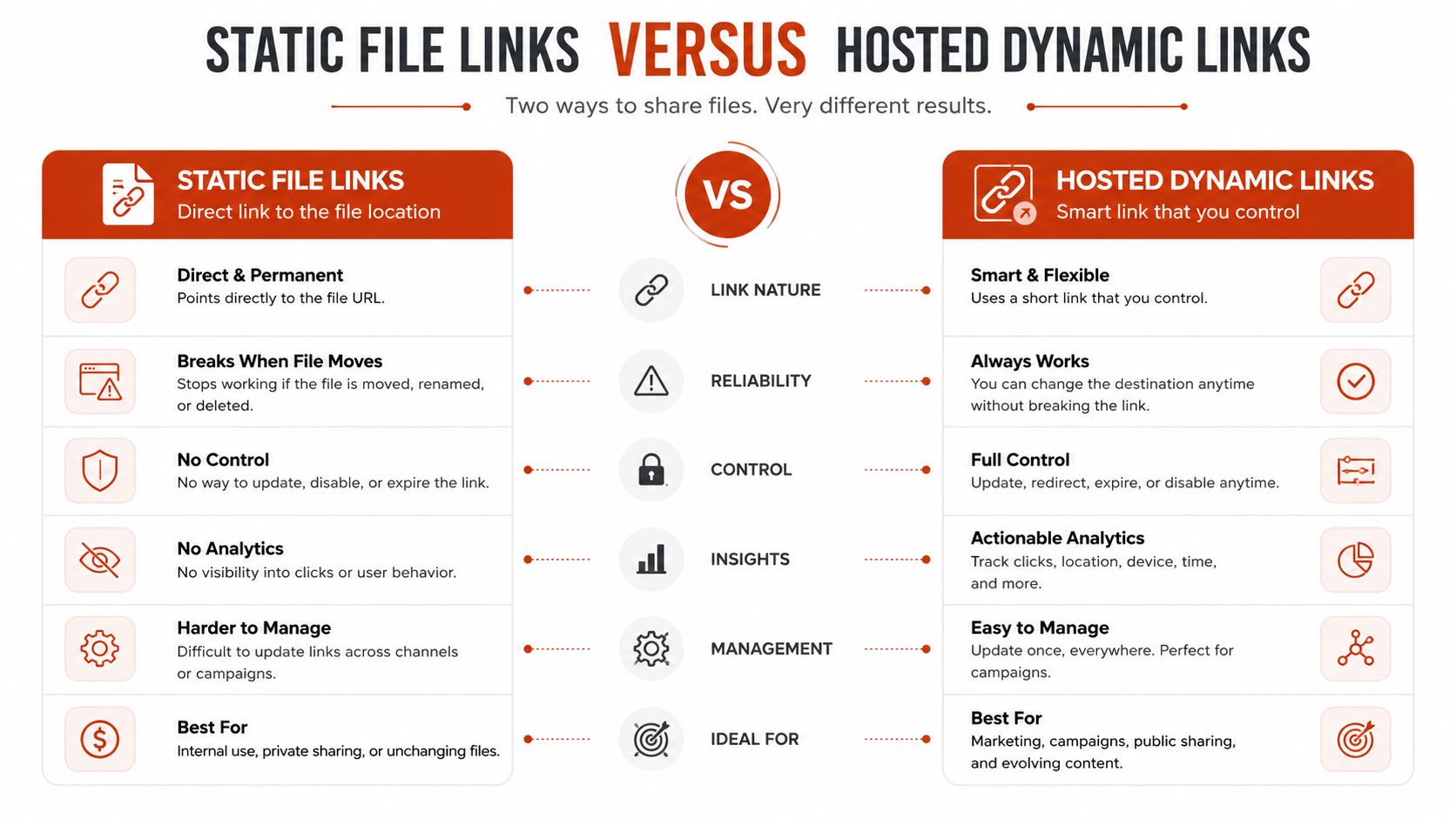
A static QR code contains a direct URL. You upload the file to your website or storage service, copy its address, and encode that address. The workflow is quick, and it's adequate when the document is final, the link is unlikely to change, and you don't need meaningful engagement reporting.
A dynamic QR code contains a redirect URL. The QR symbol stays the same, while the redirect sends readers to a hosted viewer or a managed file destination. You can then replace the PDF, adjust access controls, or update the destination without changing the printed code.
When a static link is enough
A static link works well for a one-off handout, such as a venue map or a fixed public information sheet. It has fewer moving parts, and you don't need a document platform to maintain a redirect.
The trade-off is governance. If the file moves, the hosting path changes, or you discover a mistake after printing, the code may point to the wrong place. A static link also gives you little visibility into what readers do after the scan unless the hosting setup provides separate analytics.
When a dynamic link earns its place
A photographer sharing proofs may want to replace selected images or update instructions while keeping the printed card in circulation. A consultant delivering a client report may need to correct a page, add a revised version, or protect access without distributing a new QR code.
Dynamic links also support a more useful post-scan workflow. A hosted viewer can record document engagement, show where readers stop, and support follow-up based on actual reading behaviour. If you want to manage the destination rather than merely point at a file, dynamic QR PDF links from EveryPage are designed around that model.
Use a static link when simplicity is the priority. Use a dynamic link when the printed asset has a long life, the PDF may change, or the document needs controlled access and measurable engagement.
Generating the QR Code and Preparing the Destination
The code-generation step is short. The preparation around it determines whether the result works in the real world.
Prepare the document first
Start by uploading the PDF to a destination that can serve it reliably on a phone. If you're using a managed viewer, configure the document before copying its share URL. Choose a presentation mode that suits the material, then decide whether to enable password protection, watermarking, a lead capture form, or restrictions on printing and copying.
A founder sharing an investor deck might keep the opening pages open and add a contact form at the end. A freelancer sending a proposal may prefer a clean viewer with a clear next step. A photographer may need comments, annotations, or photo selections rather than a simple download.
The destination should open in a browser-based viewer instead of forcing an immediate raw-file download. EveryPage's branded PDF viewer supports browser-based document presentation, so the reader can begin reading on the phone without creating an account.
Copy the share link
Once the PDF is ready, copy the public or controlled share URL. Keep it as short as practical. A shorter URL produces a less dense QR symbol, which gives you more flexibility when the code must fit on a business card, brochure, label, or small display.
If the destination is sensitive, test the access journey before generating the code. Confirm that the password prompt appears correctly, that the lead form is usable with a phone keyboard, and that the document doesn't expose a file or page that should remain private.
Generate and export
Paste the share URL into a QR generator, select a standard QR format, and export the result as a vector file for professional printing where possible. Vector output lets a designer scale the code without introducing the softness or pixel distortion that can appear when a small raster image is enlarged.
Keep the design restrained. Strong contrast, a clear surrounding quiet zone, and an uncluttered background matter more than decorative branding. A logo or colour treatment can work, but only after the unstyled code has passed testing.
Test the printed result
Don't test only the file on your monitor. Print a representative sample at the intended size, then scan it from the distance and angle people will use. Test with different phones and camera apps, in bright and subdued lighting, and against the actual paper colour and finish.
A successful scan isn't enough. Check that the PDF opens quickly, the first page is readable, navigation is obvious, and the reader can complete the intended action without zooming through a broken layout.
Technical Constraints That Affect Scan Reliability
QR codes follow defined technical rules, not just visual conventions. ISO/IEC 18004:2024 specifies the symbology characteristics, encoding methods, dimensional characteristics, error-correction rules, decoding algorithm, and production quality requirements. Its practical implications are straightforward: URL length, symbol density, module size, contrast, and the quiet zone all affect whether a printed code scans consistently. See the ISO/IEC 18004 technical specification for the formal requirements.
A QR symbol ranges from 21×21 to 177×177 modules, increasing in steps of 4 modules per side, according to that standard. As the encoded URL becomes longer, the symbol can require more modules. If the final physical size stays the same, each module becomes smaller, leaving less tolerance for blur, ink spread, glare, or imperfect alignment.
A dynamic redirect can help because the printed code only needs to encode the shorter redirect address. It doesn't make a badly printed symbol reliable, but it can reduce avoidable density.
Match size to scanning distance
A commonly used print heuristic is width approximately equal to distance divided by 10, described in the QR print marketing guidance from QR Verse. Treat it as a starting point rather than a guarantee.
A code intended for close handheld use may work at roughly 2–3 cm, provided the artwork, contrast, paper, and lighting are suitable. A conference banner viewed from farther away needs a substantially larger symbol. The code must be large enough for the camera to resolve individual modules without forcing the reader to stand unreasonably close.
Choose resilience deliberately
Error correction lets a QR code recover from some damage or obstruction, but higher resilience generally requires more encoded redundancy and can increase density. DENSO's standardisation information describes approximate recovery levels of 7% for L, 15% for M, 25% for Q, and 30% for H, as outlined on its QR code standardisation page.
For ordinary clean print, M is a practical default. Consider Q or H when the code may be scuffed, partially covered, or overprinted. Don't use high correction as an excuse to make the symbol smaller. Preserve the quiet zone around all four sides, maintain strong contrast, and avoid placing the code across folds, glossy highlights, textured imagery, or curved packaging.
Choosing the Right Platform for Hosting and Tracking
The right platform depends on what must happen after the scan. A basic QR generator is suitable when you only need to turn a stable URL into an image. A document platform becomes more useful when the PDF is a durable asset that needs presentation, protection, updating, and reader evidence.
| Platform | Best For | Pricing Model | Key Limitation |
|---|---|---|---|
| EveryPage | Teams sharing PDFs through a browser viewer with page-level analytics and privacy controls | Flat per-account pricing, Free, Basic at $9/mo, Pro at $29/mo, with no per-user fees | EveryPage is our product, and it doesn't offer native e-signature capture |
| DocSend | Enterprise compliance teams that need advanced permission controls | Per-user pricing model | It may be a poor fit for organisations that want flat account pricing |
| PandaDoc | E-signatures and contract workflows | Confirm current plan details directly with the provider | It may be more workflow-focused than teams need for simple PDF distribution |
EveryPage provides page-by-page analytics, including views, time on page, read-through funnel, and re-read rate. Readers don't need an account, and sharing doesn't require an account either. You can upload a PDF and receive a tracked link immediately. Its privacy approach avoids storing reader IP addresses, making the workflow suitable for teams looking for a GDPR-friendly alternative to services that retain IP data.
The platform also provides four viewer modes, password protection, watermarking, lead capture forms, custom domains, dynamic links with file replacement, and QR code generation. Flat per-account pricing means the cost doesn't rise through added per-user fees, which can matter when several people send or review documents.
Honest limitation: EveryPage doesn't provide native e-signature capture. If a contract must be signed as part of the same workflow, PandaDoc may fit better, while a compliance team with complex enterprise permission requirements may prefer DocSend.
For a fuller view of document engagement rather than scan counts alone, see EveryPage PDF tracking. The decision should follow the job: direct file access for a fixed public document, DocSend for enterprise controls, PandaDoc for signature-led processes, and EveryPage for trackable, browser-based PDF sharing with no reader account and IP-free analytics.
Best Practices for Print Production and Long-Term Management
A QR code becomes a dependable channel when the printer, document owner, and platform all handle their part of the job.
- Approve the destination first: Open the document on a phone and verify the first page, navigation, forms, and calls to action.
- Use a dynamic URL where change is likely: Replace the PDF behind the existing code instead of reprinting every brochure.
- Preserve the quiet zone: Keep clear space around the symbol and don't let artwork or text touch its edges.
- Match correction to risk: Use M for ordinary print, or Q and H where damage and overprinting are plausible.
- Print a physical proof: Scan the actual material, not only a digital preview.
- Protect sensitive documents: Add passwords, watermarking, or link controls when the PDF contains confidential information.
- Review analytics responsibly: Page-level views and reading depth can guide follow-up without storing reader IP addresses.
- Plan for permanence: Expiry is an optional control. A document link can remain live and be updated in place when the asset has a long working life.
- Label the action clearly: “Scan to read the full proposal” gives the reader a reason to use the code.
- Check the replacement process: If the PDF changes, confirm that the same destination and printed QR code still open the intended version.
Security deserves equal attention. Government guidance on QR code security considerations advises users to verify QR actions and configure devices to request permission before launching them. For organisations, that means checking the destination domain, reviewing replacement permissions, and treating a long-lived printed code as part of document governance rather than as a disposable shortcut.
A well-managed QR code connects paper to a document that remains readable, controlled, and measurable. Visit EveryPage to upload a PDF, create a trackable QR destination, present it in a mobile-friendly viewer, and understand which pages readers engage with.
See who reads your next PDF.
Try EveryPage free