How to Create a Link for a Document
Nick · Published 6 August 2026
You've probably sent a PDF recently and then wondered whether the recipient opened it, or whether it's sitting untouched in a downloads folder. That's the reason to know how to create a link for a document, because a link turns a file from a one-off attachment into something people can open, revisit, and share without friction.
The first decision is simple, but it's easy to miss. You're either creating a link inside a document, for a heading or a reference, or you're creating a shareable link to the document itself so someone can read it in a browser. Those are different jobs, and if you choose the wrong one, the rest of the workflow gets messy fast.
Table of Contents
- Why Sending a Link Beats Attaching a File
- Creating Your First Share Link Step by Step
- Adding Security Controls Before You Send
- Choosing the Right Link Tool for the Job
- Generating QR Codes and Dynamic Links That Survive Updates
- Tracking Readers Without Storing Their IP Addresses
- Common Pitfalls and What to Do About Them
Why Sending a Link Beats Attaching a File
A freelancer has just sent a proposal as a PDF attachment and is refreshing her inbox for a response. The file is technically delivered, but she still doesn't know whether it was opened, forwarded, or ignored. That's the point where the question changes from “How do I attach this?” to “How do I create a link for a document that people can use?”
Two kinds of links, two different jobs
An in-document hyperlink is what you use when the document itself needs navigation. Microsoft Word supports links to Place in This Document, including headings, bookmarks, slides, and cell references, while Google Docs uses the same basic pattern through Insert > Link and Apply. That's useful for cross-references, appendices, or jump points inside a long file.
A shareable document link is different. It points to the file itself, so a client, investor, or colleague can open the document in a browser without hunting for the attachment. Google Docs treats links as part of the document workflow, Adobe extends the same idea into PDFs, and Microsoft Word also supports linking to locations inside the current file rather than treating navigation as an afterthought. A practical rule is simple, if the reader needs to move around the document, use an internal link. If the reader needs to receive the document, use a hosted share link.
Practical rule: if the link needs to survive follow-ups, updates, and re-sends, make it a hosted document link rather than another attachment.
That distinction matters because hosted links are easier to secure, track, and update later. It also means the file becomes a durable asset instead of a disposable transfer, which is why link-based sharing now sits at the centre of modern document workflows. Adobe's PDF tools, Microsoft Word, and Google Docs all support that basic idea in their own ways, but they don't all treat the link as the main object. In practice, the tools that do make the link first are easier to manage when the document gets longer, more sensitive, or more important.
Creating Your First Share Link Step by Step
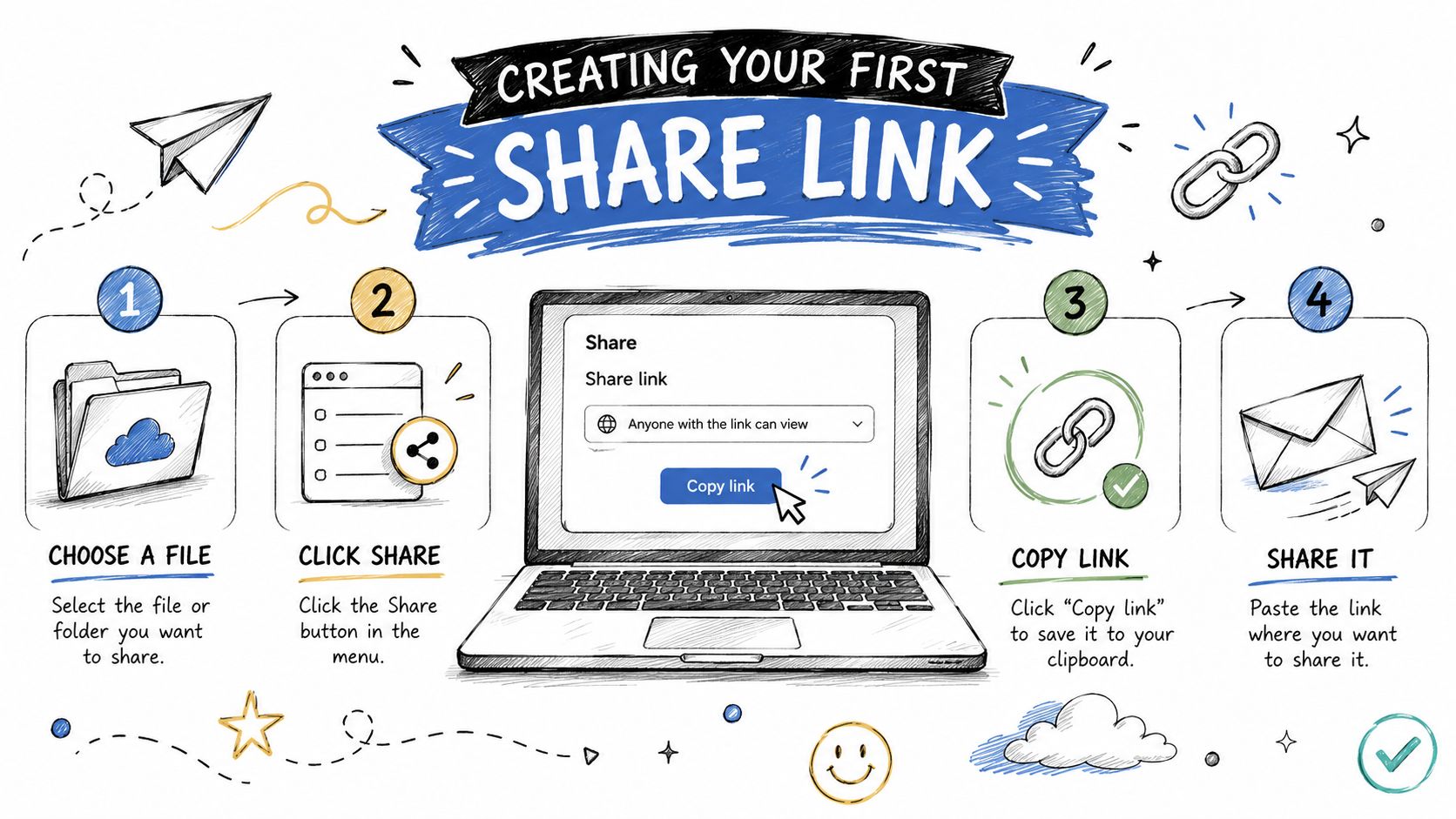
The cleanest way to learn the workflow is to use a tool that treats the link as the main output. In EveryPage, that means uploading the PDF, naming the document, choosing a slug, and copying the link. Sharing doesn't require an account, and readers don't need one either, which keeps the handoff straightforward when you're sending a proposal, pitch deck, or proofing file to someone who just wants to open it.
A simple upload and share flow
Start by uploading the PDF. Once the file is in place, give the document a clear name, then pick a slug that's short enough to read back over email or chat without confusion. After that, copy the share link and send it wherever the recipient is already working. The value of that sequence is that the document is ready to share as soon as the upload completes, so you're not waiting for a separate publishing step.
That same logic appears in other office tools, although they handle the workflow differently. Google Docs, Sheets, and Slides let you highlight text, click Insert > Link, enter a URL or email address, and select Apply. That's a direct in-editor method for building navigation or references inside the file itself, and Google documents that pattern clearly in its desktop help pages. Microsoft Word uses a similar idea for internal destinations, while Adobe's cloud workflow uploads the file first and then generates the share link after the upload finishes. For reference, Google's docs on link creation are here, Google's desktop link workflow.
What changes when the link is the first-class object
When the document link is the thing you create first, you can treat the file like a tracked asset rather than a static attachment. That's useful for a founder sending an investor deck, a consultant sending a statement of work, or a photographer sending proofs. It also makes later controls, like passwords or viewer modes, easier to apply because the document already lives in a shareable wrapper.
If you're using Google Docs for a living document, the internal link pattern works well. If you're sharing a PDF externally, a hosted document link gives you more control over how it's read.
Adobe's help pages describe PDF hyperlinks as a more granular editing task, where you choose Tools > Edit PDF > Link > Add or Edit, draw the clickable area, and assign a destination URL or page view. That's useful when the PDF itself needs navigation. For external sharing, though, a hosted link is the more practical starting point because it's simpler to send, track, and update.
Adding Security Controls Before You Send
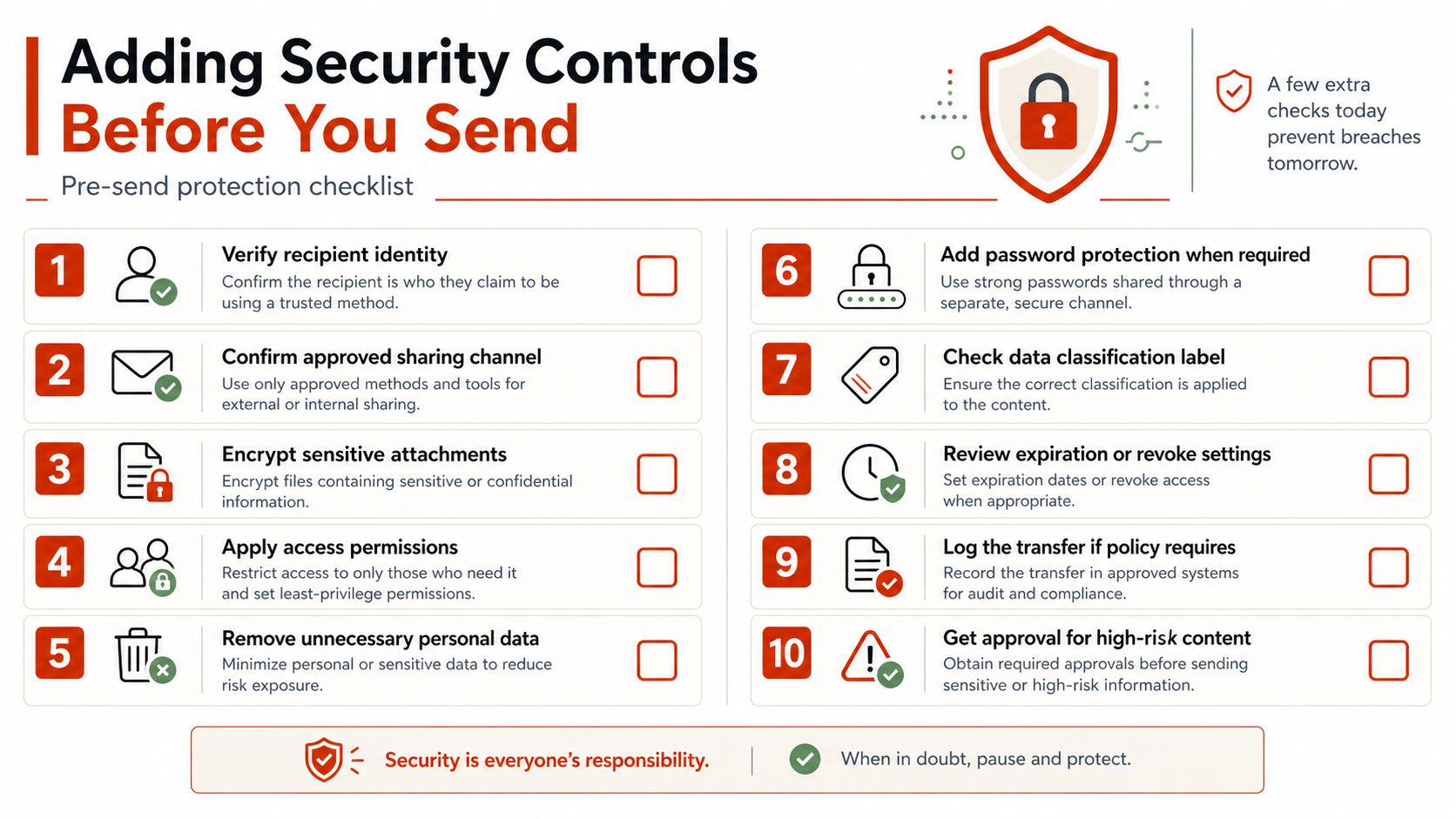
A document link shouldn't be treated as open season. Before you send it, decide who can view it, how long it should remain active, and whether the content should carry a watermark or a read limit. On EveryPage, those controls are sender choices, not defaults, so a link can expire, self-destruct after a view budget, or remain live and update in place if that suits the document better.
Set the controls that matter before the first recipient opens it
Password protection is the obvious starting point for sensitive files. If the document contains commercial terms, client work, or internal policy, a password keeps casual forwarding from becoming a problem immediately. Watermarking adds another layer, especially when the file is likely to be downloaded or screened during a review cycle, because it ties the copy back to the viewer.
Here's the checklist I'd use before pressing send:
- Password protection: use it for anything confidential or commercially sensitive.
- Expiry or view budget: choose this only when the document should stop being accessible later.
- Watermarking: add it when attribution matters, especially for proposals and proofs.
- Viewer mode: pick the presentation style that matches the content, not just the default view.
- Domain controls: keep the share environment tight when the audience should stay within known channels.
One important trade-off is permanence. Some teams want a document to disappear after a deadline, but plenty of files are better treated as living assets. EveryPage supports optional expiry and self-destructing links, but links can also stay permanent and be updated in place. That matters when the document is a policy pack, a recurring sales deck, or a proofing gallery that evolves over time.
The privacy side matters too. EveryPage's approach is built around page-level reader analytics without storing IP addresses, which keeps the tracking record useful without forcing you to retain a network address for every reader. Readers don't need an account, and that keeps the access step lightweight. For the product's secure sharing flow, see secure PDF sharing options.
Choosing the Right Link Tool for the Job
The right tool depends on what the document has to do. A compliance team and a freelancer do not need the same thing, and a pitch deck does not need the same control surface as a signed contract. That's where link choice matters, because not every platform is built for the same handoff, and it's better to be honest about that than to force one tool into every job.
Match the tool to the workflow
If you need enterprise-style permissions and audit trails, DocSend is a better fit for compliance-heavy teams. If the document is really part of a contract workflow, PandaDoc fits better because e-signatures are central to that use case. EveryPage is our product, and it fits founders, freelancers, and small teams who want flat per-account pricing, page-level reader analytics, four viewer modes, and a share flow that doesn't require the reader to create an account.
That does come with a limitation. EveryPage isn't built for native e-signature workflows, so if the document needs a legally binding signature process, a dedicated contract tool is the cleaner choice. That's not a flaw, it's a boundary, and it matters because trying to make one link platform do everything usually leaves the important part underbuilt.
| Tool | Pricing model | Reader account needed | Best for |
|---|---|---|---|
| DocSend | Enterprise pricing | Usually no for viewing, depending on setup | Compliance teams that need audit trails and granular permissions |
| PandaDoc | Contract-focused pricing | Often depends on workflow | E-signatures and contract workflows |
| EveryPage | Flat per-account pricing | No | Founders, freelancers, and small teams sharing PDFs with analytics |
A custom domain also changes how the link feels when it lands in someone's inbox. If your brand matters, a branded link is easier to trust and easier to recognise when it's forwarded internally. For the setup details, use custom domain support as the reference point.
Decision rule: if the job is to measure engagement with a document, use a document analytics platform. If the job is to sign a contract, use a signing platform.
The practical test is simple. Ask whether you care more about who read what, who signed what, or who can edit what. Then choose the link tool that makes that one outcome easy instead of giving you three half-finished ones.
Generating QR Codes and Dynamic Links That Survive Updates
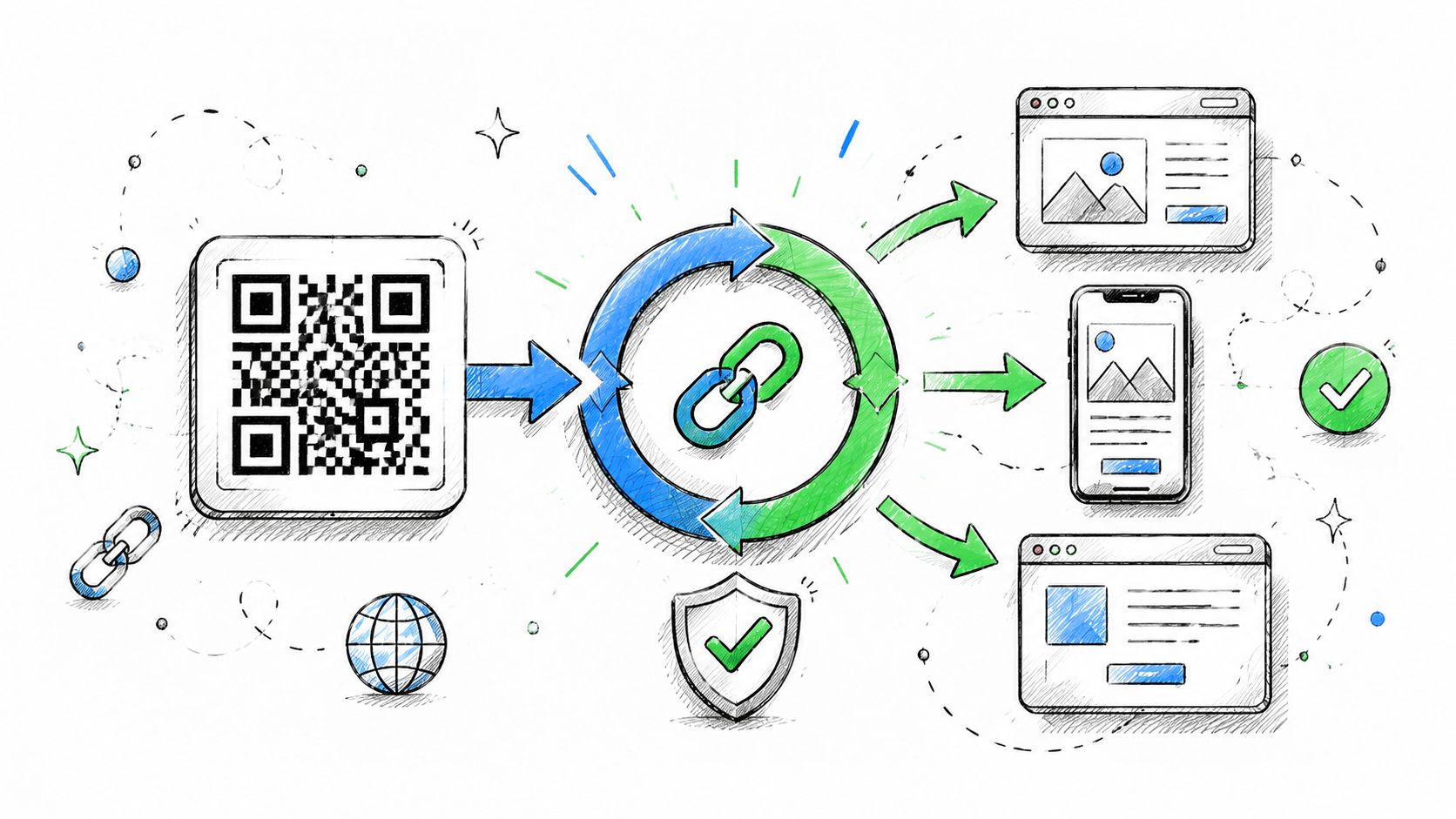
A QR code turns a printed document into something that can be opened later without typing a long address. A dynamic link goes one step further, because it lets you replace the file behind the URL without breaking the link itself. That combination is useful whenever the document is printed, handed out, or displayed in the physical world.
Why QR codes matter once paper is involved
A photographer sending wedding proofs can put a QR code on the thank-you card and let the couple open the gallery on their phone. If the album changes later, the same QR code can still point to the updated file, which saves reprinting and keeps the handoff tidy. The same idea works for brochures, event signage, and leave-behind sales sheets.
The workflow is straightforward. Generate the QR code from the document link, place it on the printed asset, and keep the link live even if the PDF is replaced later. That's the practical advantage of a dynamic link, the printed material doesn't age out the moment the file changes. If you're using EveryPage for this, the dynamic QR PDF links flow is designed for exactly that pattern.
Replacement without link rot
Dynamic links are valuable because they keep the URL stable while the content changes behind it. That matters when a brochure goes out of date, a proposal needs a small correction, or a proofing file needs a new round of images. Instead of sending a fresh link and hoping everyone uses the latest one, you update the file in place and keep the same address.
A printed QR code is only useful if the destination survives revision. If the URL breaks every time the file changes, the print asset becomes dead weight.
Document linking stops being a convenience and starts acting like infrastructure. The link becomes a durable reference, not a temporary pointer. For teams that still hand out paper, that's the difference between a useful printed asset and one that needs constant replacement.
Tracking Readers Without Storing Their IP Addresses
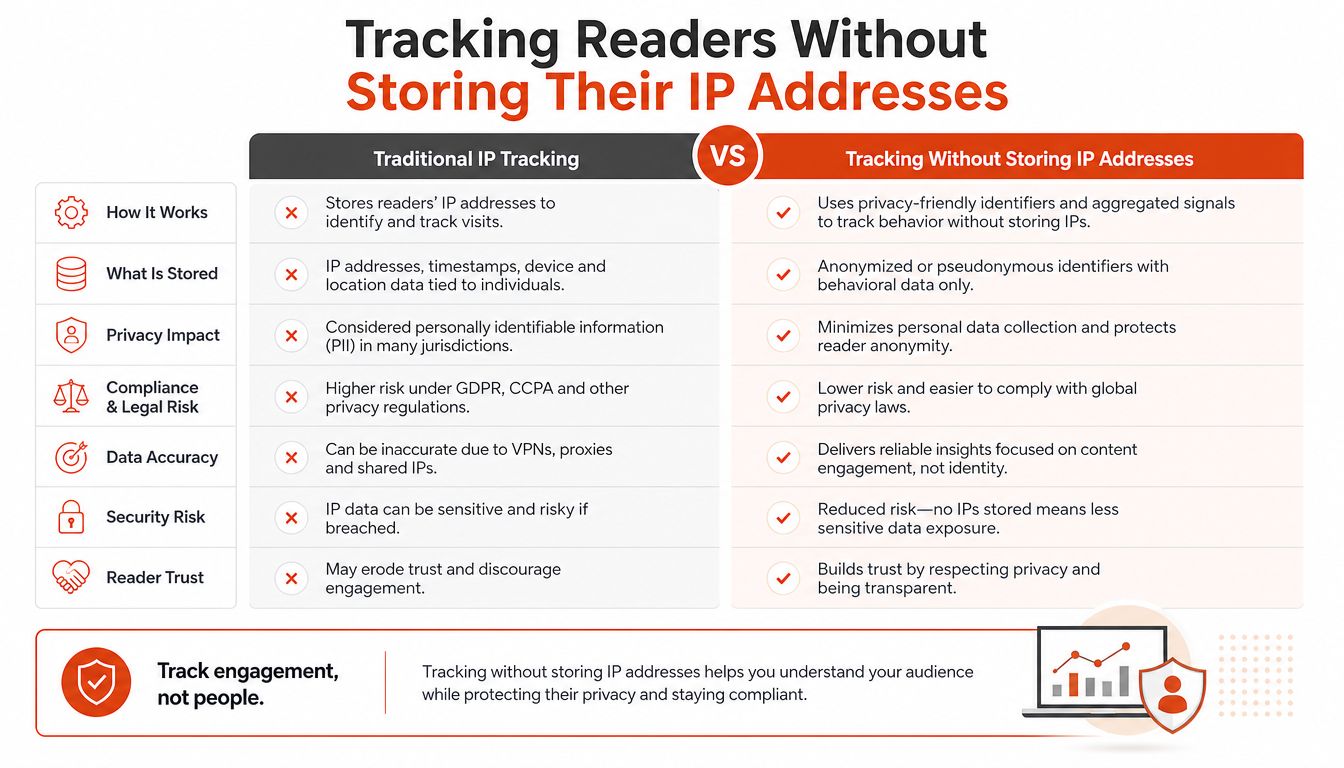
A lot of document trackers rely on IP storage because it's the easiest way to spot a returning reader and estimate location. That works, but it also means the tracker is hanging on to more network data than many teams want to keep. A privacy-first system can still recognise engagement without storing the full address.
What you gain, and what you give up
The better alternative is to derive reader identity from a salted one-way hash, resolve country in flight, and discard the address. That gives you a useful engagement record without keeping a raw IP trail attached to each view. The trade-off is obvious, you can't reconstruct the full network address from the hash later, because that's the point.
That trade-off matters more now because many teams want analytics without creating unnecessary privacy risk. In a GDPR context, keeping less data is often easier to defend than keeping more data and explaining why it was needed. EveryPage follows that privacy-first pattern, so you can still see page-level engagement while avoiding IP storage.
Here's the practical difference in plain language:
- Traditional tracking: often keeps IP-based identifiers for repeated recognition and rough location.
- Privacy-first tracking: keeps the engagement signal and drops the address.
- Operational result: follow-up is still possible, but the data footprint is smaller.
The important thing is that analytics still work. You can still see whether someone opened the file, what they read, and whether they came back, which is usually what sales, client service, and proofing teams need. The reason this matters is not philosophical, it's practical. If you can answer the follow-up question without storing unnecessary address data, that's a better operating choice.
Common Pitfalls and What to Do About Them
Most first-time link problems are not mysterious. They're usually caused by a mistyped slug, an unhelpful preview, a missing password, or a file that was renamed after people had already started using the link. The fix is usually small, but the failure feels bigger than it is because the recipient just sees a broken experience.
Quick checks for the failures you're most likely to hit
- 404 after clicking: the slug was mistyped or the link was copied incompletely. Fix: regenerate or recopy the link and test it once in a private browser window.
- No one opens the link: the preview or opening context didn't give enough reason to click. Fix: write a clearer subject line and send a short note that names the document and its purpose.
- Shared too widely: the link had no password or viewer control. Fix: add a password, then resend only to the people who need access.
- Link stops matching the file: the document was renamed or replaced in a way the platform doesn't support. Fix: use a dynamic link or a platform that updates the file in place.
A few do's and don'ts help here.
- Do test the link before sending it to a client, investor, or partner.
- Do keep the slug readable so you can recognise it later.
- Do apply the right security control before the first open.
- Don't assume a link works just because it copied cleanly.
- Don't rename files casually if the platform treats the filename as part of the address.
- Don't rely on a static attachment when follow-up matters.
Short answers to the questions that usually come next. Shorteners can work on hosted links, but only if they don't obscure the underlying access controls or break your ability to track the document properly. Links can be revoked after sending if the platform supports it, although anyone who already downloaded the file may still have a copy. Dynamic links usually don't hurt search engine indexing in the way people fear, because most document shares are designed for controlled distribution rather than public discovery.
If you want a link workflow that treats PDFs as durable, trackable assets, EveryPage gives you upload-and-share access, page-level analytics, QR codes, password protection, and dynamic links without asking readers to sign up. If that's the way you want to send proposals, proofs, or policy files, visit EveryPage and try it on a document you're already sharing today.
See who reads your next PDF.
Try EveryPage free