Encrypt Outlook Message
Nick · Published 23 August 2026
You've encrypted a sensitive proposal in Outlook, sent it to a client, and received a reply saying the message can't be opened. The sender followed the visible workflow correctly, but encryption depends on more than the button in the compose window. The sender's configuration, the chosen protection method, the recipient's Outlook version, and the recipient's identity or certificate all affect whether the protected content can be read.
That's why an encrypt Outlook message workflow should be tested as a delivery process, not treated as a formatting option. The practical question isn't only how to encrypt an email. It's whether the intended reader can open it, whether attachments remain protected after download, and whether the controls match the sensitivity of the document being shared.
Table of Contents
- Why Your Encrypted Email Might Not Reach the Reader
- Choosing Between S/MIME and Microsoft Purview
- Encrypting a Message in Outlook Desktop, Web and Mobile
- What Happens When the Recipient Opens Your Encrypted Email
- What Encryption Does Not Protect
- Sending Encrypted Attachments and Links Securely
Why Your Encrypted Email Might Not Reach the Reader
A finance manager sends an HR notice to an external adviser using Outlook's Encrypt option. The message leaves the outbox, but the adviser sees a wrapper email and doesn't know whether to sign in, request a passcode, or open the message in a browser. In another case, an employee uses S/MIME without a valid certificate selected in Outlook. The compose window still looks familiar, but the protected message can't be decrypted by the intended recipient.
These failures happen because email encryption is a chain of dependencies:
- Sender setup: S/MIME requires a valid certificate installed and selected before it can work reliably.
- Recipient access: Protected external messages may require the reader to sign in with a Microsoft, Google, or Yahoo account, or use a one-time passcode.
- Client compatibility: Different Outlook versions and device types support different protected-message experiences.
- Method selection: S/MIME and Microsoft Purview Message Encryption solve related problems through different technical paths.
Microsoft describes encryption as converting readable text into cipher text that only the intended recipient can decipher. That protects confidentiality, but it doesn't guarantee a frictionless reading experience. A recipient who isn't prepared for a portal redirect or passcode prompt may assume the message is broken, even when the sender's configuration is sound.
Practical rule: Send a low-risk test message to the same recipient type and device category before relying on encryption for a time-sensitive proposal, policy notice, or client file.
Operational controls around the sender's environment matter too. Teams that restrict allowed sending or sharing domains should review their Outlook email domain allowlist controls alongside encryption testing. An allowlist won't fix a missing certificate, but it can prevent a separate delivery policy from obscuring the core problem.
Choosing Between S/MIME and Microsoft Purview
The choice usually comes down to managed certificates versus policy-based protection. S/MIME is certificate-dependent and suits organisations that control both ends of the communication. Microsoft Purview Message Encryption is designed for broader recipient mixes, including external users who may not use Outlook.
S/MIME requires a valid digital certificate installed and selected in Outlook. Microsoft provides a setup path through Settings > Mail > S/MIME, where users can import or export digital IDs and select Encrypt contents and attachment for all messages I send for automatic protection. Microsoft's current compatibility-oriented baseline for S/MIME encrypted email is AES-128, rather than legacy algorithms such as 3DES, as documented in its Outlook guidance.
Purview has a different operational model. The tenant must have the relevant rights-management and policy configuration in place, and administrators can apply encryption through sensitivity labels or mail flow rules. Microsoft says Office 365 Message Encryption was deprecated in 2023 and replaced by Purview, so instructions referring only to OME may be outdated even if the visible Outlook workflow looks similar.
| Feature | S/MIME | Microsoft Purview |
|---|---|---|
| Core dependency | A valid certificate and compatible recipient certificate | Tenant configuration, rights management, and applicable policy |
| Best fit | Managed internal teams or established certificate relationships | Internal and external recipients across mixed email providers |
| Recipient experience | Usually opens in a compatible mail client when the matching certificate is available | Compatible Outlook clients can open it directly, while external users may use the Purview portal |
| Automatic protection | Available through S/MIME settings for all outgoing messages | Available through policies, sensitivity labels, and mail flow rules |
| Rights restrictions | Can support protected messaging, depending on configuration | Do Not Forward adds stronger rights restrictions than Encrypt alone |
| Main failure point | Missing, expired, untrusted, or mismatched certificates | Recipient authentication, client compatibility, or tenant misconfiguration |
Microsoft documents three Outlook paths, S/MIME, Purview Message Encryption, and sensitivity labels. They shouldn't be treated as interchangeable. Sensitivity labels are particularly useful when the organisation wants policy to decide when protection applies, rather than asking every employee to remember the Encrypt button.
For an internal colleague on a compatible Microsoft 365 setup, Purview is often easier to operate. For a controlled environment with certificates already issued and maintained, S/MIME can provide a more integrated client experience. For Gmail, Yahoo, or other external recipients, Purview generally avoids requiring the recipient to install or exchange an S/MIME certificate.
Encrypting a Message in Outlook Desktop, Web and Mobile
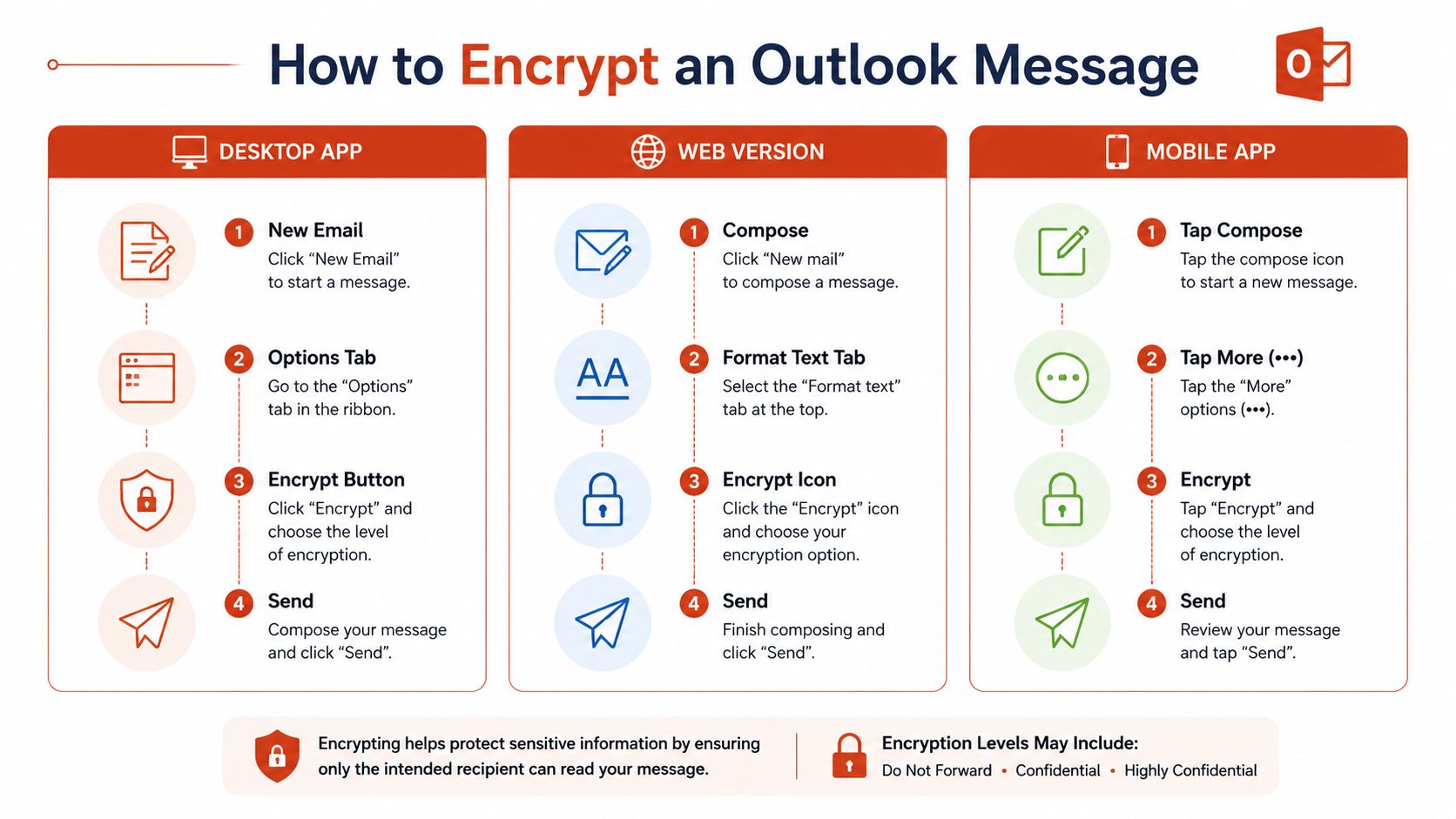
For a one-off protected message in modern Outlook, start by composing a new email. Open the Options ribbon, select Encrypt, then choose either Encrypt or Do Not Forward before sending.
The distinction matters. Encrypt protects the message content, while Do Not Forward adds rights restrictions intended for more sensitive material. Microsoft exposes both options directly in the compose experience, so the sender can choose protection based on the document and the recipient's likely need to reuse it.
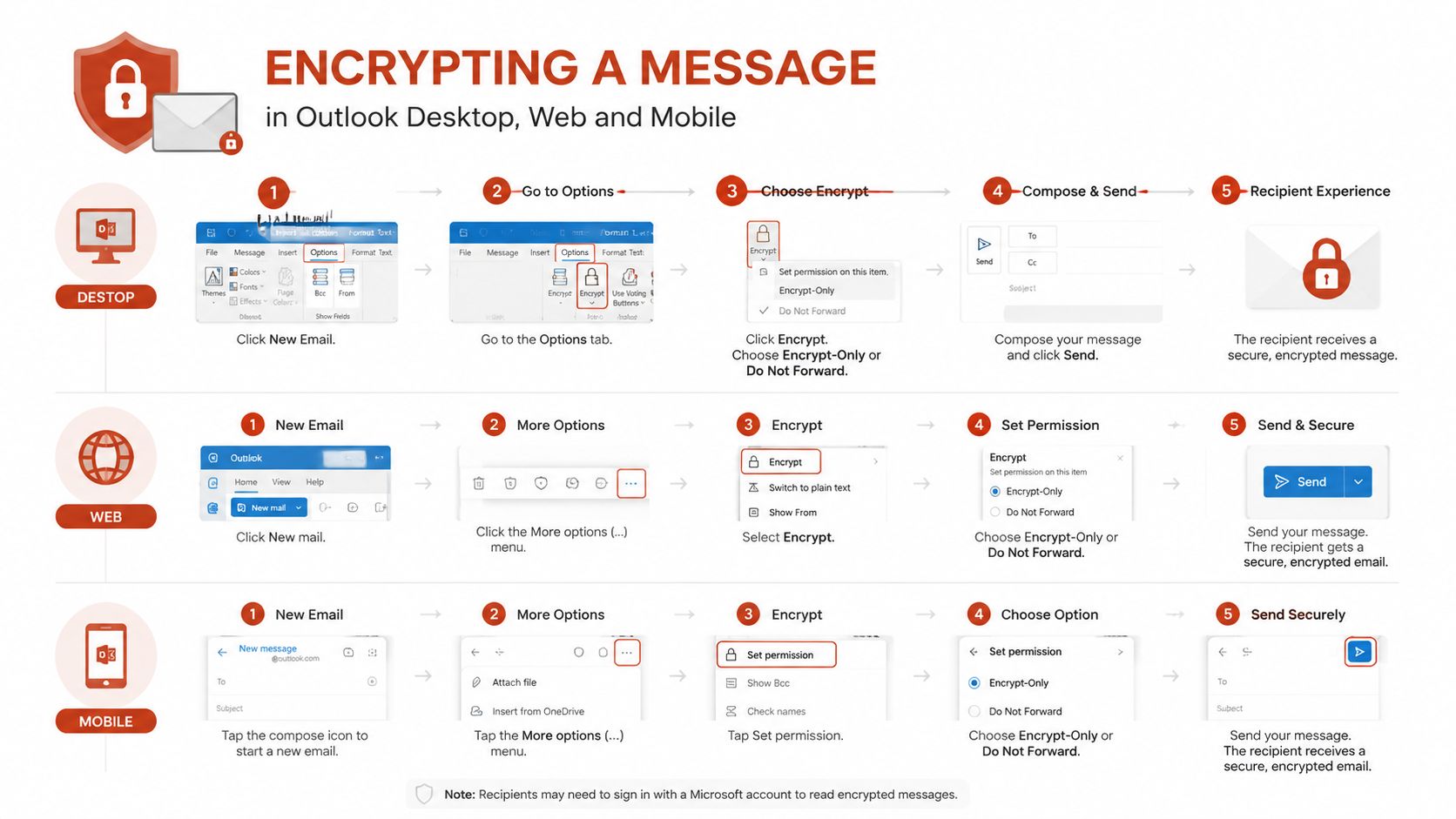
Desktop Outlook
Use this sequence:
- Compose: Select New Email and prepare the message.
- Open Options: Choose the Options ribbon in the message window.
- Select Encrypt: Open Encrypt and choose the protection mode.
- Send: Confirm the recipients and send the message.
If the Encrypt option isn't available, don't assume the feature is merely hidden. The account, subscription, tenant policy, or S/MIME configuration may not support the selected method.
Outlook on the web
The web workflow follows the same general logic. Compose a new message, open the message options or formatting controls, select Encrypt, and choose the available protection mode. The exact placement can vary with the Outlook web interface and account type, so test the workflow in the account that will send the message.
Mobile Outlook
On iOS and Android, tap to compose, open the additional options menu, and choose Encrypt when the account and policy expose that control. Mobile support is useful for sending from outside the office, but it doesn't remove the recipient-side dependency. A protected message sent from a phone can still require portal authentication or a compatible certificate at the other end.
For automatic S/MIME encryption, Microsoft documents Settings > Mail > S/MIME and the setting Encrypt contents and attachment for all messages I send. The same area supports importing and exporting digital IDs. Automatic protection reduces the risk of a user forgetting to encrypt, but it makes certificate lifecycle management more important. A missing or invalid certificate can interrupt normal sending rather than merely affecting an occasional sensitive message.
What Happens When the Recipient Opens Your Encrypted Email
The recipient experience depends on the protection path and the client they're using. Microsoft documents direct opening for protected messages in new Outlook, Outlook on the web, Outlook for iOS and Android, Outlook for Windows 2019 and newer, and Microsoft 365. In these environments, the recipient may be able to open the message without manually decrypting it.
External recipients have a different path. Microsoft's Purview comparison says that recipients outside GCC High, including commercial Microsoft 365 users and people using Outlook.com, Gmail, or Yahoo, receive a wrapper email that directs them to the Microsoft Purview Message Encryption Portal. From there, they can read and reply to the protected message after authenticating.
Authentication may involve signing in with an account the recipient already uses, or requesting a one-time passcode. That step is a normal part of the protected-message flow, but it can look suspicious to someone who wasn't warned in advance. A short note in the unprotected subject or an earlier message can prevent the recipient from mistaking the wrapper for phishing.
S/MIME creates a different failure pattern. The recipient needs the appropriate certificate and private key to decrypt the message. If the certificate isn't installed, isn't trusted, or doesn't match the protected content, the recipient may see an unreadable message or an instruction to configure certificate support.
Recipient preparation: Tell external readers that they may receive a Microsoft protection wrapper and need to authenticate before the message opens.
Before sending, check three things:
- Client: Ask whether the recipient will use Outlook, a browser, iOS, Android, Gmail, or Yahoo.
- Identity: Confirm they can access the account associated with the protected-message flow.
- Certificate: For S/MIME, verify that the recipient has the compatible certificate and private key.
The most reliable test uses the same recipient type and device that will handle the actual message. Testing only from one Outlook desktop account won't reveal what a Gmail recipient sees in a browser or whether a mobile user can complete the authentication step.
What Encryption Does Not Protect
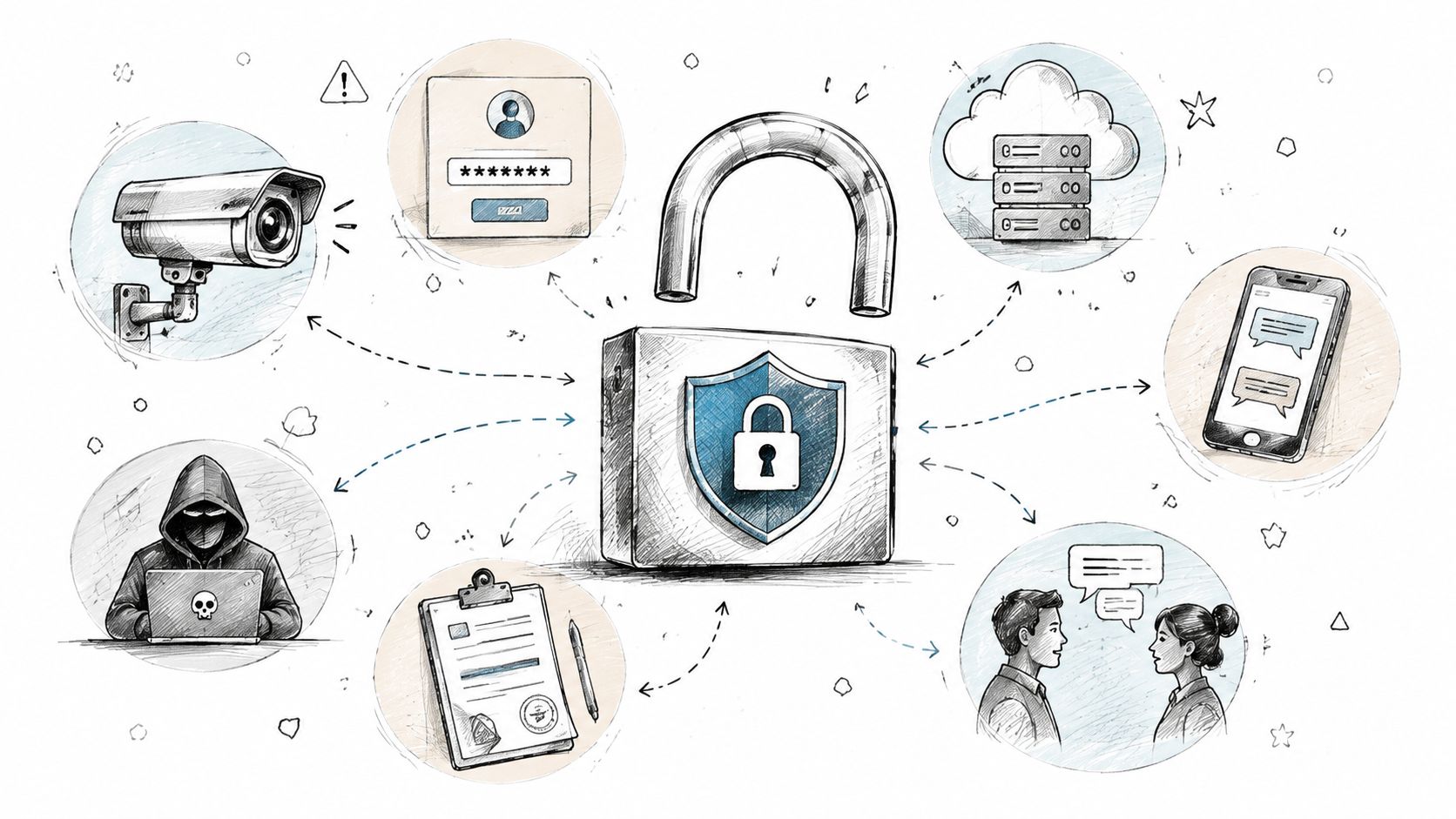
Encryption protects confidentiality during the protected-message exchange. It doesn't automatically control everything the recipient can do after reading the content.
Microsoft states that Encrypt-only messages can still be copied, printed, and forwarded. That makes Encrypt appropriate when the message must remain confidential during delivery but the recipient still needs normal use of the content. Do Not Forward applies stronger restrictions, making it more suitable for sensitive commercial, legal, or HR messages where redistribution creates a greater risk.
A founder sending a pitch deck may need to know which pages an investor reads and whether the deck is revisited. A freelancer delivering a proposal may need proof that the client reviewed the pricing section. A photographer sharing proofs may need comments and selection feedback rather than another round of attachments. Email encryption alone doesn't provide those document-level signals.
For high-stakes material, consider adding controls at the document or sharing layer:
- Watermarking: Identify the intended reader on the document or downloaded copy.
- Expiry: Remove access when the sender chooses, while recognising that expiry can be optional.
- Read tracking: Record whether the document was opened and how thoroughly it was reviewed.
- Access restrictions: Use passwords, domain policies, or viewer permissions where appropriate.
- Document persistence: Keep one controlled link for a document that may need to be updated, rather than scattering multiple attachments across email threads.
Microsoft's guidance also describes policy automation through mail flow rules and sensitivity labels. That approach shifts protection decisions from individual memory to organisational policy, but it requires careful tenant configuration and ongoing administration. For a practical distinction between message confidentiality and broader document privacy, review this guide to email encryption and privacy controls.
Sending Encrypted Attachments and Links Securely
Attachments follow the encryption method applied to the message, but the sender still needs to decide what happens after the recipient opens or downloads the file. A protected email may secure the delivery path without giving the sender meaningful control over a downloaded proposal, contract, design, or report.
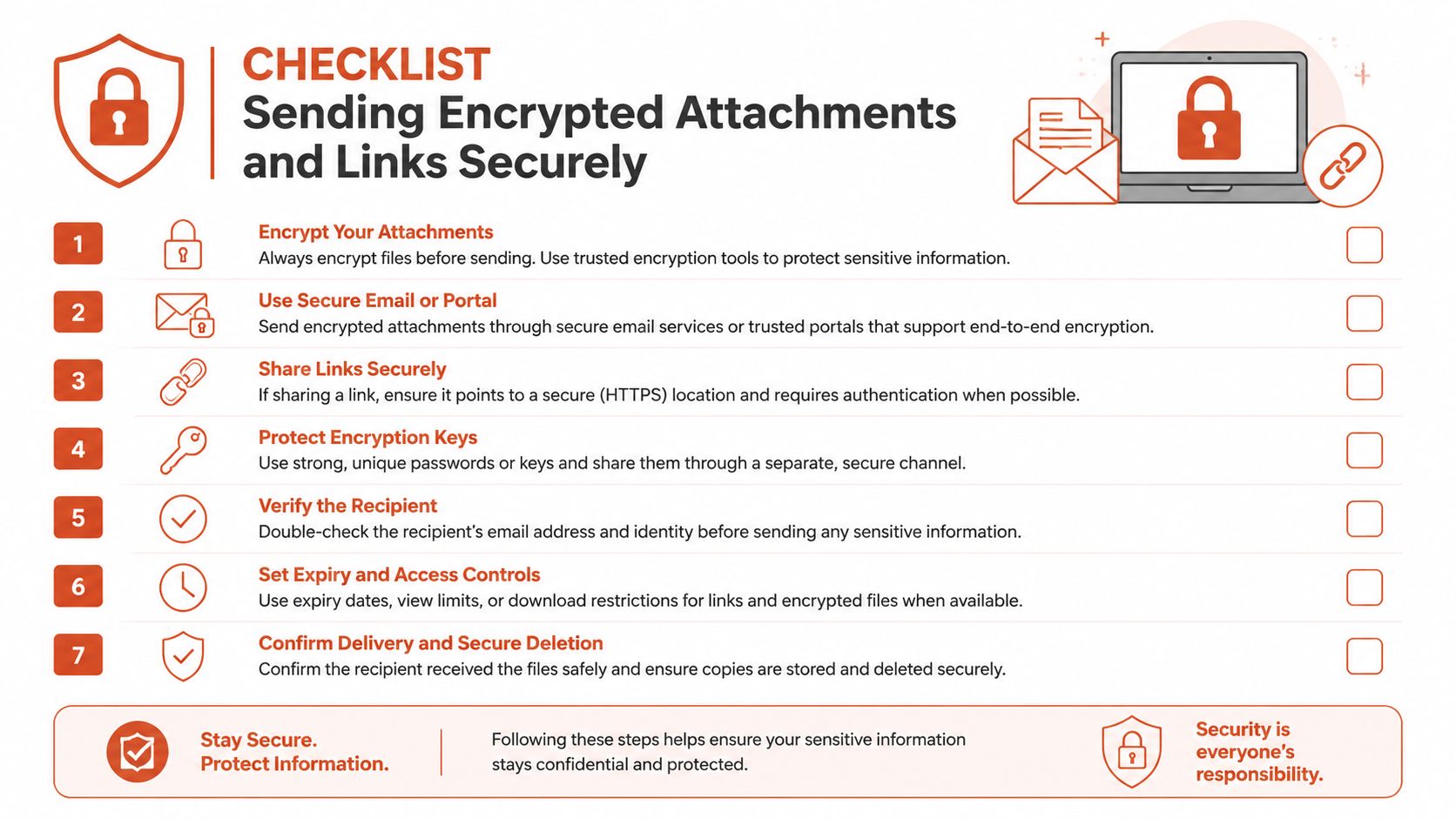
Use this checklist before sending:
- Choose the method: Use Purview for mixed external audiences when portal access is acceptable. Use S/MIME where certificates are managed on both sides.
- Select the restriction: Choose Encrypt when normal reuse is acceptable. Choose Do Not Forward when stronger message rights are required.
- Prepare the recipient: Explain the portal, sign-in, or one-time passcode step before sending.
- Protect the document: Add password protection, watermarking, access restrictions, or expiry when the file itself needs ongoing control.
- Verify delivery: Confirm that the intended recipient opened the message and can access the attachment.
- Maintain one source: For a document that will evolve, use an updatable link rather than sending a succession of conflicting files.
A tracked document platform is often more appropriate than a raw attachment for a founder sharing an investor deck, a consultant sending a proposal, or a photographer collecting proof selections. The control point becomes the document, where the sender can manage access and understand page-level engagement, instead of relying solely on the email envelope. This guide to sending a PDF securely covers that distinction in practical terms.
Encryption is strongest when it's matched to the audience, tested on the recipient's device, and combined with document-level controls where redistribution or follow-up visibility matters.
EveryPage lets you share PDFs through tracked links with page-level analytics, password protection, watermarking, optional expiry, and no reader account requirement. Pricing is flat per account, with Free, Basic at $9 per month, and Pro at $29 per month, with no per-user fees. Visit EveryPage to share a sensitive document with more control than an email attachment alone.
See who reads your next PDF.
Try EveryPage free