How to Encrypt a Zip File Securely on Any Device
Nick · Published 8 August 2026
You're probably looking at a folder full of contracts, pitches, reports, or client files and thinking the quickest fix is to zip it, set a password, and send it on. That does help in some cases, but it doesn't automatically mean the archive is properly protected, or that the recipient can open it without friction.
The difference between a password and real archive encryption matters. A lot of guides stop at the click path, but the safer workflow is to choose the right encryption method, understand the compatibility trade-offs, and decide whether a password-protected ZIP is even the right container for the job. For a secure sharing workflow with built-in controls and tracking, EveryPage's password protection guidance sits alongside the practical points below.
Table of Contents
- Why Most Zip Passwords Are Weaker Than You Think
- Encrypting a Zip File on Windows with 7-Zip
- Native Zip Encryption on macOS and Linux
- Password Strength and Secure Delivery Practices
- When a Password-Protected Zip Is the Wrong Choice
- Your Secure File Sharing Checklist
Why Most Zip Passwords Are Weaker Than You Think
A freelancer sends a client proposal. A founder sends financials to an investor. In both cases, the file is zipped, a password is added, and everyone assumes the job is done. That assumption is where people get into trouble.
ZipCrypto and AES-256 are not the same thing
The key distinction is legacy ZipCrypto versus AES-256. Practical ZIP encryption guidance recommends creating the archive with 7-Zip or WinZip, then explicitly choosing AES-256 and, where available, enabling Encrypt file names. That filename setting has a real compatibility trade-off, and the detailed format choice belongs in the next section. Papermark's ZIP encryption guide covers the workflow clearly, including why the archive format matters.
A ZIP password on its own doesn't tell you which algorithm is doing the work. Older tutorials and some built-in flows focus on the password prompt, not the encryption model behind it, which is why they can leave people with a false sense of security. Enterprise guidance also recommends selecting AES-256 and confirming the password twice to reduce avoidable mistakes during archive creation. USPTO guidance on WinZip and document encryption makes that preference explicit.
Practical rule: if you can't confirm the encryption method, you don't really know what protection the archive has.
Security fails at the sharing step too
A second mistake is sending the password in the same channel as the ZIP. That defeats the point of encrypting the file in the first place. Guides that address this directly warn users not to keep the file and the password together, because the recipient, and anyone else who sees the message thread, gets both pieces of the puzzle. This discussion of ZIP encryption limits calls out that gap clearly. The safer practice is to send the archive and the password through separate channels, or use a file-sharing method that handles access control without exposing the password in transit. For a practical reference on password handling and delivery, see Everypage's password protection guidance.
There's also the file-name problem. Standard ZIP archives can still reveal the names of the contents, even when the payload is protected, which is a useful clue for an attacker and a nuisance for anyone trying to keep the document set discreet. If the recipient needs strict confidentiality, that detail matters as much as the password itself.
Encrypting a Zip File on Windows with 7-Zip
On Windows, 7-Zip is still the cleanest option for a portable archive that recipients can open without special enterprise software, provided you choose the settings with care. It gives you a practical path for everyday file sharing, but the trade-off is real. If you want the archive to hold up under scrutiny, use AES-256 and avoid ZipCrypto for anything sensitive, as UVM's IT knowledge base recommends.
The click path that produces a secure archive
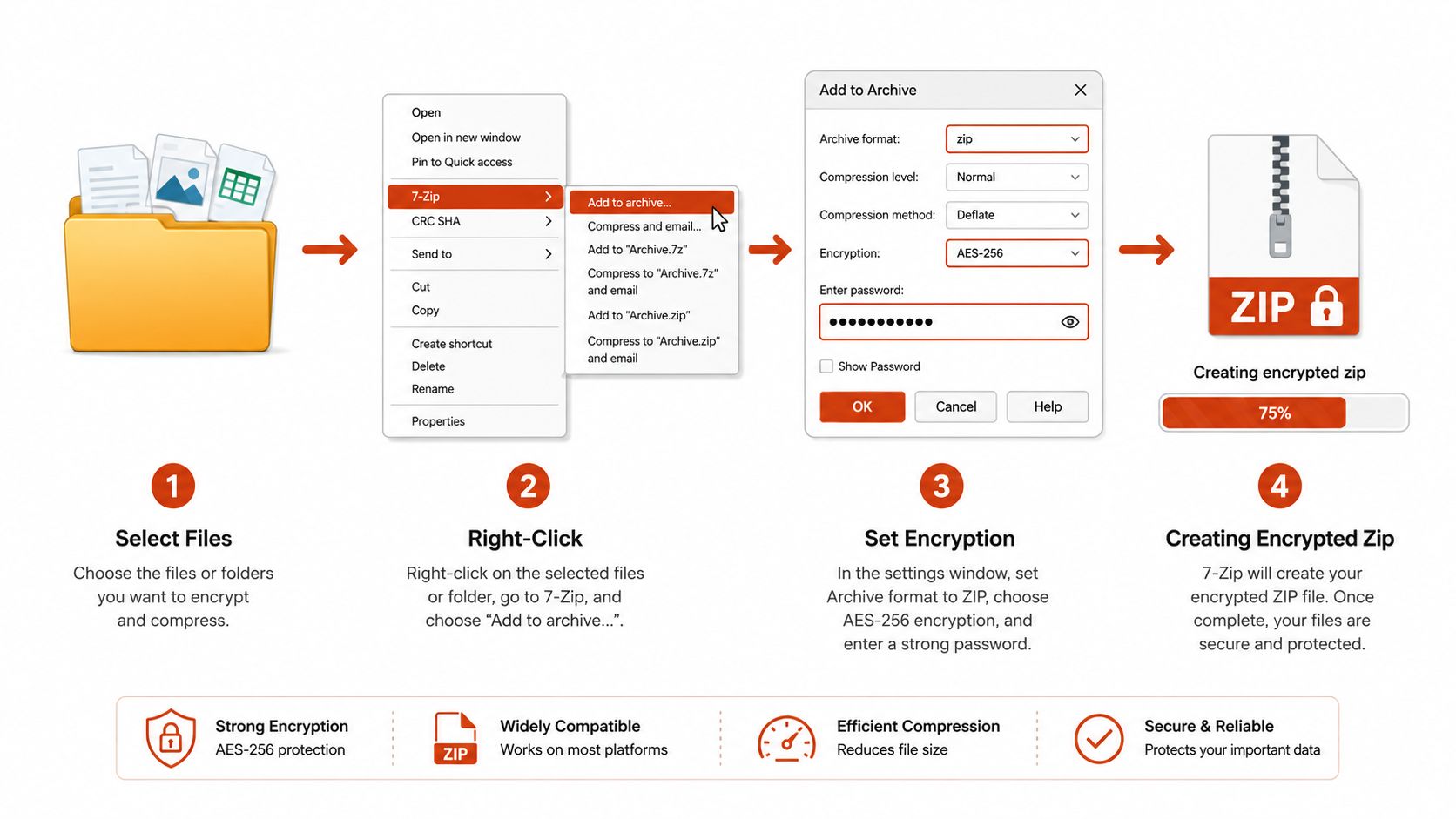
Select the file or folder, right-click, then choose 7-Zip and Add to archive.... In the dialogue, set Archive format to zip if you need the broadest recipient compatibility. Set the encryption method to AES-256, enter the password, enter it again carefully, and then click OK.
That password confirmation matters. A single typo creates an archive that looks fine but becomes a support problem later, because nobody can open it without the exact password. Security guidance from enterprise and government environments consistently tells users to verify the password twice, and that advice saves time when the file has to be shared beyond your own team.
The filename encryption trade-off
Here is the constraint that many walkthroughs skip. Encrypt file names is available in 7z format, not standard ZIP. That matters if directory names themselves reveal client names, project codes, or other sensitive context. It also creates a compatibility trade-off, because mixed Windows, macOS, and Linux environments handle 7z less consistently than plain ZIP.
So the choice depends on what you are protecting. If compatibility matters most, use ZIP + AES-256 and accept that the file names are more exposed. If hiding filenames matters more than convenience, use 7z with filename encryption and make sure the recipient is set up for it. Papermark's guide makes that distinction clear.
Use ZIP when compatibility comes first. Use 7z when filename privacy matters more than convenience.
Native Zip Encryption on macOS and Linux
Mac users and Linux users often want a built-in method, not another app to install. That's fair, especially for a one-off transfer where you just need a protected archive and don't want to onboard a new tool for a single delivery. The native path exists, but the behaviour varies a bit by platform.
The macOS Terminal route
On macOS, the terminal-based command uses the zip -e flag. Apple discussion guidance gives the concrete example zip -e mysecurefile.zip mydoc.txt, then prompts you to set and verify a password in Terminal. Apple's discussion thread is useful because it shows the exact mechanical detail many generic guides leave out.
The normal behaviour is simple. You run the command, type the password when prompted, then type it again to verify. No characters appear while you're typing, which is expected. If the recipient opens the archive on another operating system, they still need compatible unzip support, and that's where the built-in route can become uneven.
Linux and cross-platform opening
On Linux, the standard zip utility is the usual native path, and the password-protected archive behaves much like the macOS one. The command-line approach is efficient for users who are comfortable in Terminal, but it's not a friendly hand-off for everyone else. If the recipient is on Windows or macOS and relies on default archive tools, the result can be inconsistent.
That inconsistency is why Archive Utility on macOS causes so much confusion. People often expect a ZIP created elsewhere to open cleanly with the built-in tool, then discover it doesn't behave the way they assumed. The safest practical advice is to test the archive on the recipient's likely operating system before you send the actual file.
If you only need to protect a single folder for a colleague who already knows how to open archives, native ZIP can be enough. If you need repeatable, low-friction delivery across several clients or teams, native tooling is usually the wrong long-term habit.
Password Strength and Secure Delivery Practices
The archive method gets the attention, but the password and delivery channel are where most real failures happen. A strong encryption method can still be undermined by a weak password, and a strong password can still be exposed if you send it beside the file.
Build passwords that aren't guessable
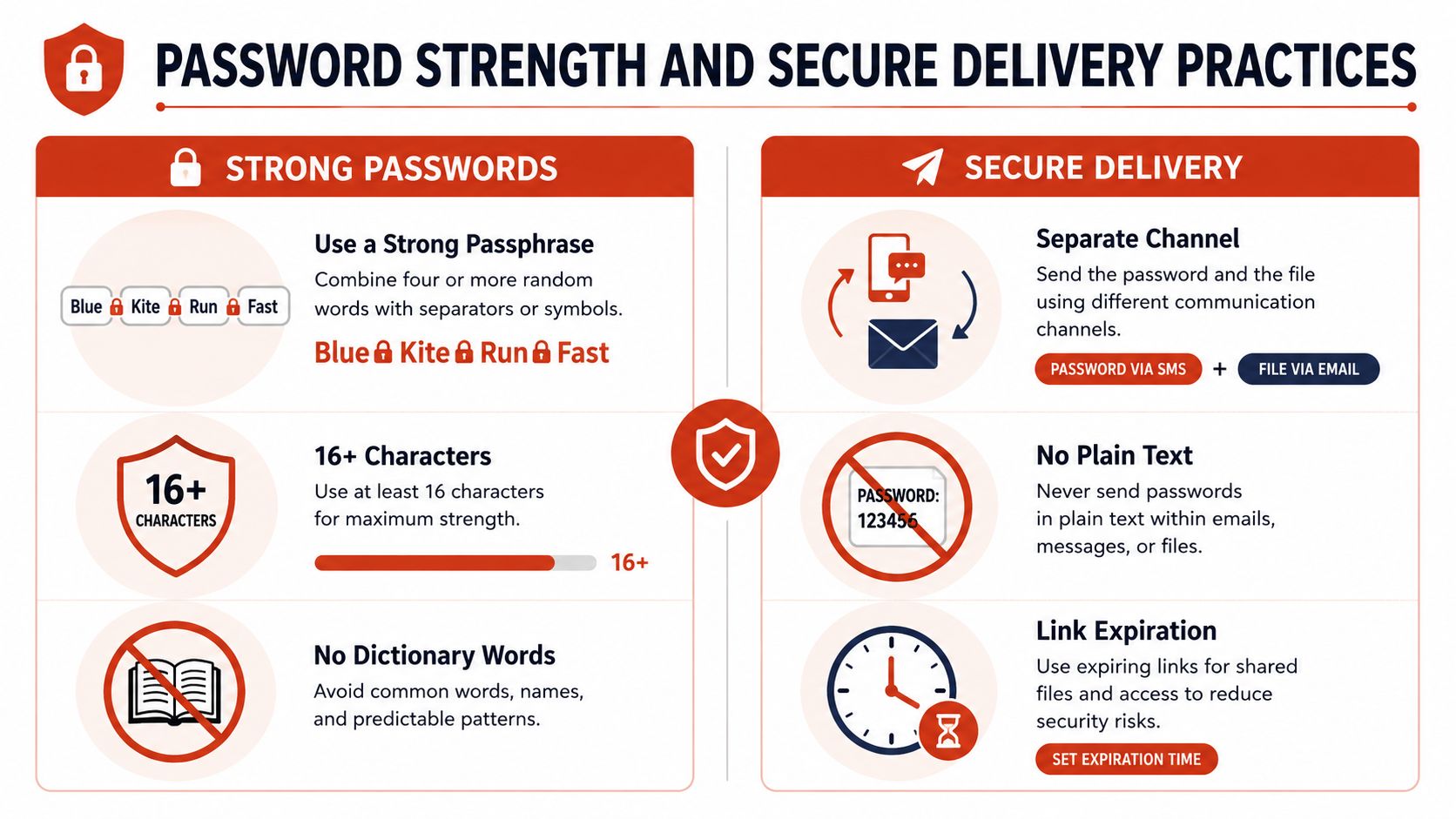
Use a passphrase, not a short word with numbers tacked on. Four unrelated words are a better starting point than a single dictionary word with a symbol added at the end. Keep it unique to that archive, and don't reuse it across multiple ZIP files.
Practical rule: if you'd be annoyed to type it twice, it's probably weak. If you can guess it from a client name or project title, it's definitely weak.
I also see people choose passwords they can share verbally in a meeting. That's convenient, but it's not much of a security plan if the same meeting notes are forwarded around later. A better pattern is to keep the archive password distinct from any account password you care about.
Separate the file from the password
Never put the ZIP and the password in the same email thread. Use a separate messaging app, a phone call, or a secure note service if you need a temporary delivery path. The point is simple, the recipient should need both the file and the second channel to complete access.
For workflows that need clearer separation and controlled access, EveryPage's secure PDF sharing guide is a useful contrast because it treats sharing as a trackable event rather than a blind hand-off.
If filenames are visible in the archive, keep that in mind too. A password protects the contents, but it doesn't automatically hide the structure of what you're sending unless you're using a format that supports filename encryption. That distinction matters when the file names themselves reveal sensitive context.
When a Password-Protected Zip Is the Wrong Choice
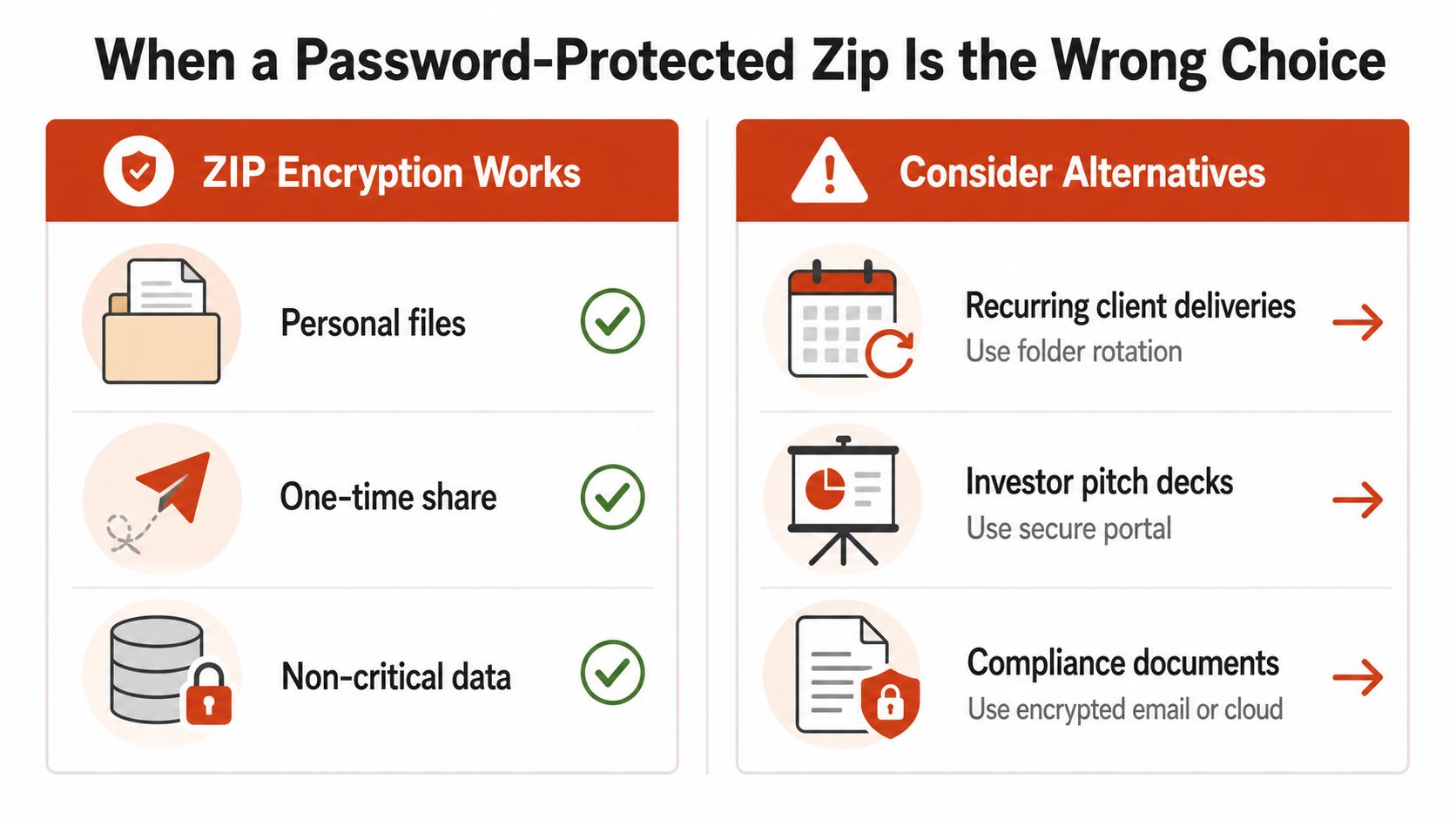
A password-protected ZIP works well for a one-time hand-off. It starts to break down when the job is repeated delivery, ongoing review, or any workflow that needs proof of access. In those cases, the archive is acting like a container, not a sharing system.
Recurring work needs more than an archive
If you're sending the same client folder every week, a password-protected ZIP gets old fast. If the file changes often, if several people need access, or if you need to see whether the deck was opened, an archive is the wrong fit. Browser-based access, update-in-place, and readable activity logs matter more than compression in those workflows.
For recurring or controlled sharing, EveryPage's self-destructing link feature lets you set view budgets and expiry without resending files. That changes the job from sending a static package to managing access over time, which is a better match for material that gets reviewed, revised, or passed around inside a team.
That's where platforms like EveryPage become relevant. It offers page-by-page analytics, four viewer modes, password protection, watermarking, lead capture forms, custom domains, QR codes, dynamic links with file replacement, and reader comments, while keeping reader access account-free and keeping page-level analytics without storing IP addresses. It's also GDPR-friendly in how it handles reader identity, which is a meaningful privacy difference for teams that want to limit personal data exposure.
Choose the tool by the job
Use DocSend when enterprise compliance is the main concern and the team needs a more compliance-heavy environment. Use PandaDoc when the work is centred on e-signatures and contract workflows. Use EveryPage when you need trackable document sharing with flat per-account pricing, Free, Basic at $9/mo, and Pro at $29/mo, with no per-user fees. The limitation is straightforward, it doesn't position itself as an enterprise compliance suite, so regulated teams may need something heavier.
A password-protected ZIP is still the right call for a portable, one-time transfer where the recipient can open the file with the tools they already have. It is a weaker choice for ongoing collaboration, recurring client sends, and controlled review, especially when you need logs, expiry, or access changes without rebuilding the archive every time.
If the sender needs audit-friendly delivery and the reader needs a browser, a ZIP is usually the wrong container.
Your Secure File Sharing Checklist
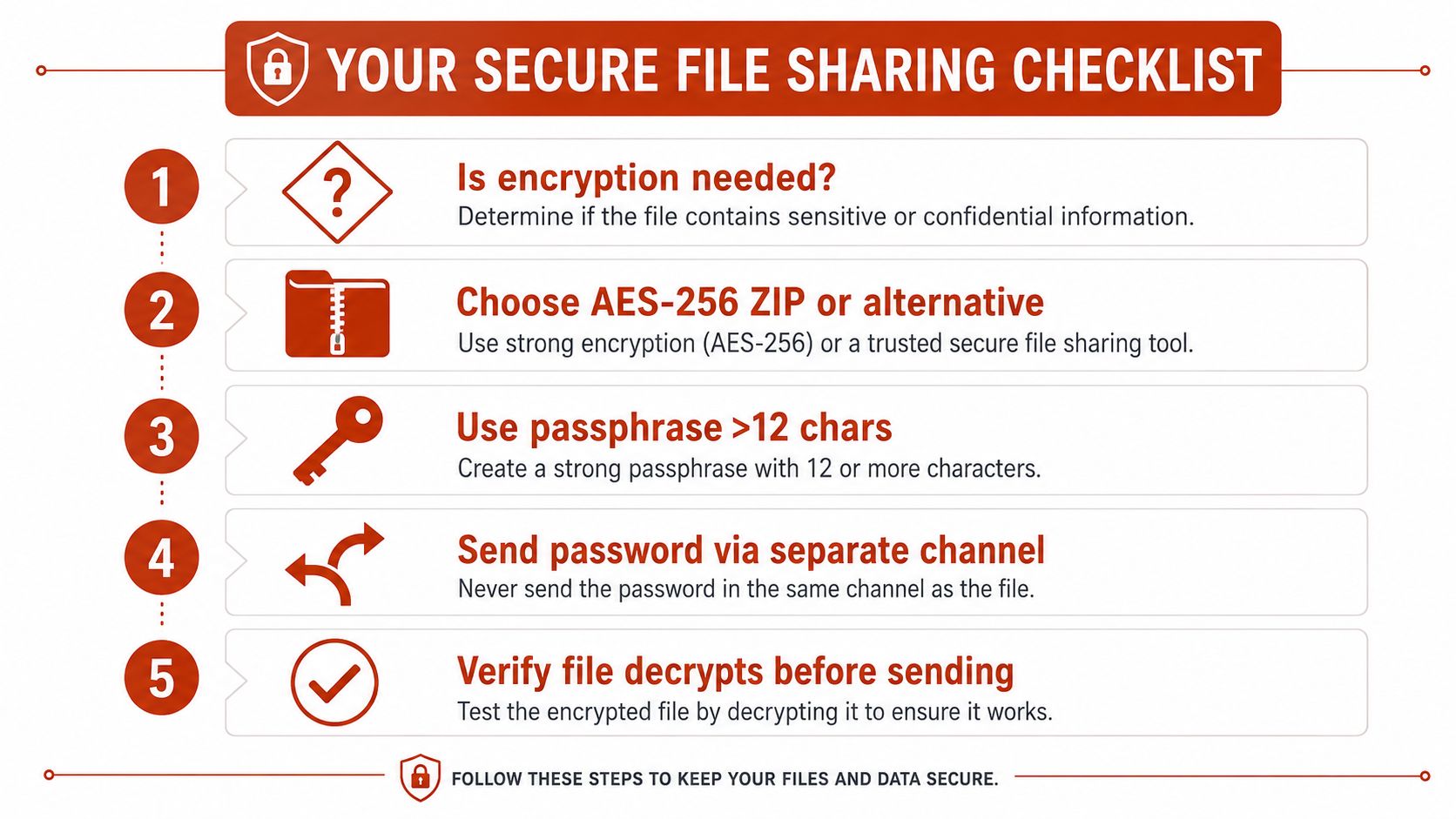
Before you encrypt a ZIP, decide whether you need a ZIP. If the answer is yes, choose AES-256 where possible, and confirm the archive format won't break the recipient's workflow. If the answer is no, stop forcing the file into a container that doesn't fit.
Quick checks before you send
- Confirm the use case. One-off transfer, recurring delivery, or tracked review are different jobs, and they don't need the same tool.
- Verify the algorithm. Use AES-256 for modern archive encryption, not an older password-only flow.
- Test the recipient path. Open the archive on the operating system your recipient uses, not the one on your desk.
- Separate password delivery. Send the password through a different channel from the ZIP itself.
- Keep a safe backup. Hold an unencrypted copy in a secure location so you're not locked out if the archive becomes unreadable.
The clean rule is this. Use an encrypted ZIP when you need a portable, one-time hand-off and you can control the password separately. Use a document-sharing platform when you need tracking, browser access, and a durable asset that can be updated instead of resent.
If you're comparing secure file-sharing options for proposals, decks, or client deliverables, take a look at EveryPage. It gives you tracked browser-based sharing without reader accounts, page-level analytics without storing IP addresses, and flexible controls when a plain ZIP isn't the right fit.
See who reads your next PDF.
Try EveryPage free